Key Takeaways
- Your funds are not stored inside the extension. Balances live on the blockchain and are controlled by the keys derived from your recovery phrase, so a broken extension is a display problem, not a loss of ownership.
- Work from the least risky fix to the most risky. Restarting the extension, opening it in a full browser tab, and updating the browser solve most cases. Reinstalling should be last.
- Never type your recovery phrase into a website, form, chat, or repair tool. Real support teams never ask for it, and most losses during troubleshooting come from scams rather than from the original bug.
What "will not open" actually means
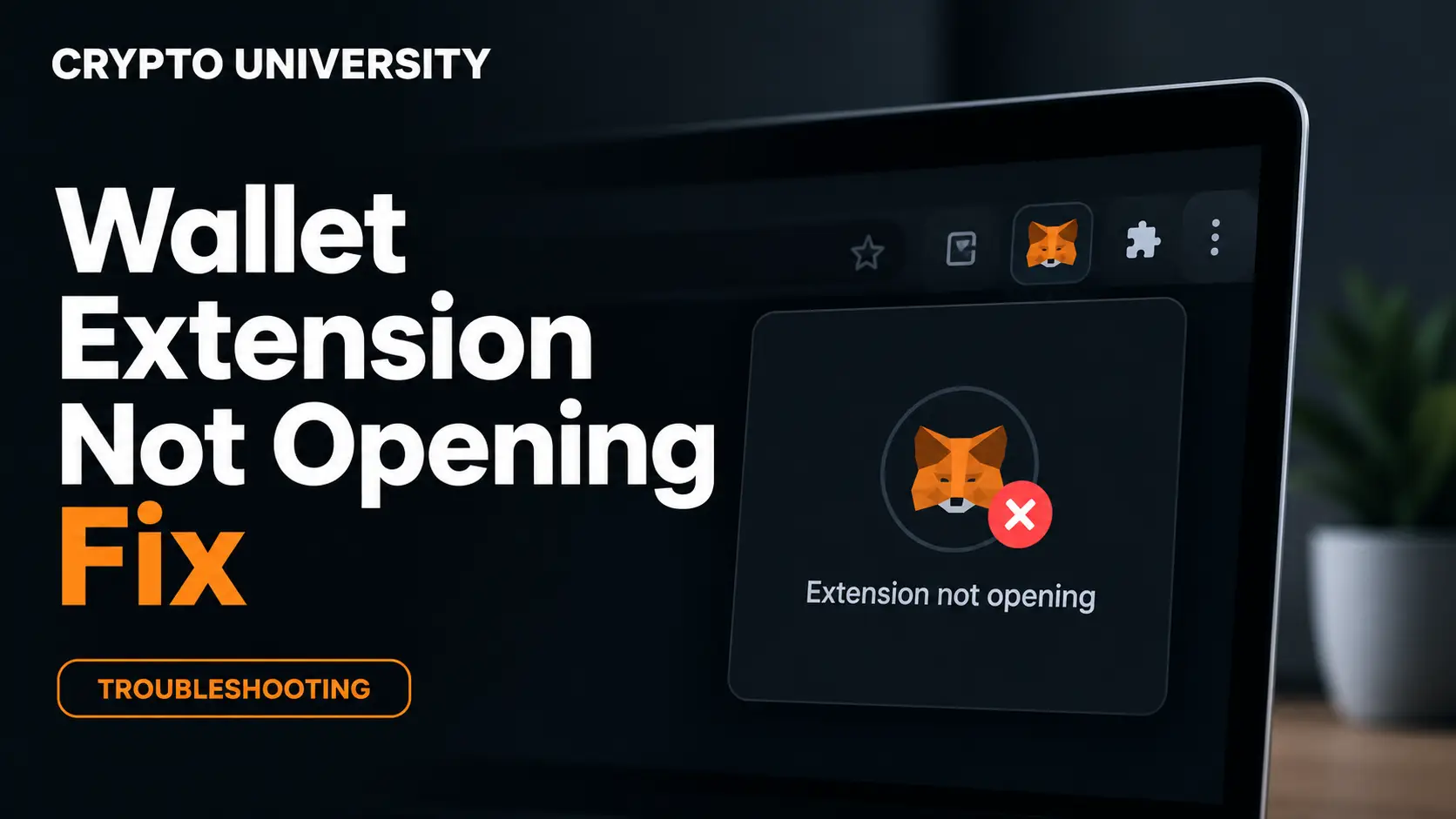
"Will not open" is not one problem. It is a group of symptoms with different causes, and naming the symptom correctly saves time.
| Symptom | What you see | Most common causes |
|---|---|---|
| No response | You click the icon and nothing appears | Background process asleep or crashed, browser needs restart |
| Blank popup | A white or grey box opens with no content | Corrupted local extension data, rendering failure, outdated build |
| Endless spinner | Logo or loading circle never finishes | Invalid saved network settings, blocked network requests, heavy local data |
| Error screen | A message, error code, or broken page icon | Version mismatch after an update, damaged extension files |
| Icon missing | The extension disappeared from the toolbar | Extension unpinned, disabled by the browser, or removed by policy or security software |
| Popup closes instantly | The window flashes and vanishes | Focus conflict with another window, or a conflicting extension |
Write down which one applies to you before changing anything.
Before you troubleshoot: three safety rules
Rule 1. Confirm you still have your recovery phrase. This is the 12 or 24 word phrase you wrote down during setup. Without it, an uninstall can be permanent. If you cannot find it and the wallet still opens on another device or browser profile, back it up there first.
Rule 2. Never enter your recovery phrase anywhere except the official wallet interface. No support agent, verification page, "wallet sync" tool, or repair utility legitimately needs it. Scam accounts monitor public support channels and message people who post about broken wallets.
Rule 3. Only download software from the official source. Search ads and copycat listings are a known attack path, so check the publisher and the developer domain before installing anything.
Step by step fixes, from safest to most invasive
Step 1. Restart the extension
Open your browser extensions page, find the wallet, switch it off, then switch it on again. Alternatively, close the browser completely, including background windows, then reopen it. MetaMask documents both methods and warns that restarting locks the wallet, so you will need your password to unlock it again.
Step 2. Open the wallet in a full browser tab
Popups are the most fragile part of an extension. Most browser wallets also run as a normal page.
- Open your extensions page and copy the extension ID from the wallet entry.
- In a new tab, visit
chrome-extension://YOUR_EXTENSION_ID/home.htmlon Chrome, Brave, or Edge. - On Firefox the prefix is
moz-extension://followed by the extension UUID shown on the add-ons debug page. - Many wallets also offer "Expand view" in their own menu once open.
Copy the ID from your own browser rather than from a forum post. IDs pasted online are a common way to send people to a fake extension.
Step 3. Check pinning and site permissions
Right click the wallet icon and confirm it is pinned to the toolbar, since some users report the popup only renders reliably when pinned. Also check the site access setting, because browser updates occasionally reset permissions.
Step 4. Update the browser and the extension
Version mismatch between a new extension build and an old browser is a frequent cause of loading failures. Update the browser first, restart it, then open the extensions page, enable developer mode, and use the update button to force an extension update. Turn developer mode back off afterwards, because it disables some security checks.
Step 5. Look for a repair prompt
If the browser has flagged the extension files as damaged, the extensions page shows a corruption warning with a repair option. Repairing reinstalls the files while keeping local data, so try it before a full removal. Antivirus software and profile sync tools are common triggers for this state.
Step 6. Test for extension conflicts
Two wallets can fight over the same browser hooks. A reported example is Phantom failing to open on sites when another wallet is installed, because both inject into the same provider object.
- Disable every other extension.
- Test the wallet.
- Re-enable the others one at a time until the problem returns.
The last extension you enabled is the conflict.
Step 7. Read the background console
This step is diagnostic rather than a fix, and it is what support teams ask for.
| Wallet | Where to look |
|---|---|
| MetaMask | Extensions page, developer mode on, inspect the background or service worker view, then read the console. State logs can also be downloaded from the wallet settings |
| Phantom | Help icon inside the wallet, then Download App Logs |
| Most others | Extensions page, click the service worker link, check the console and network tabs |
Red errors usually name the failing component, for example an invalid network configuration or a missing storage record. Logs can contain wallet addresses and settings, so review them before sharing, and never share your password or recovery phrase.
Step 8. Try a clean browser profile
Create a new browser profile and install only the wallet in it. If the wallet opens there, the problem is your original profile rather than the wallet. If it fails there too, the problem is the extension build, the operating system, or something blocking it.
Step 9. Rule out network and settings problems
An endless spinner is often a network problem rather than a broken interface. Check your connection, turn off any VPN, and read the wallet or blockchain status page. If a custom or deprecated test network was added recently, switching back to a default network often clears the state.
Step 10. Reinstall as a last resort
Only do this after you have confirmed your recovery phrase, in writing, offline.
- Confirm the recovery phrase and password are safely stored.
- Remove the extension from the extensions page.
- Close and reopen the browser.
- Install the wallet again from the official website or store listing, checking the developer name.
- Restore the wallet using the recovery phrase.
- Re-add custom networks, imported tokens, and hardware wallet accounts.
Reinstalling does not affect ownership of anything on chain. It only rebuilds the local interface.
Fix comparison
| Fix | Time | Risk of losing local data | Try it when |
|---|---|---|---|
| Restart extension | Under a minute | None | Always first |
| Full tab view | 2 minutes | None | Popup is blank or closes instantly |
| Update browser and extension | 5 minutes | None | Problem started after an update |
| Repair from extensions page | 2 minutes | Low | Browser shows a corruption warning |
| Disable other extensions | 5 minutes | None | Wallet works alone but not with others |
| New browser profile | 10 minutes | None | Everything else works elsewhere |
| Reinstall | 15 minutes | High without a recovery phrase | Nothing else worked |
Browser specific notes
| Browser | Notes |
|---|---|
| Chrome, Brave, Edge | Same extension platform, so fixes usually transfer. Security software blocking the browser user data folder is a common cause of repeated corruption |
| Firefox | Uses a different extension storage layout, and blank screen reports are historically more common. Check the add-ons debug page for errors |
| Safari | Fewer wallets are supported, and extensions must be enabled in browser settings before they appear |
| Managed or work devices | Company policy can silently block or remove extensions. Check with your administrator before reinstalling repeatedly |
When the extension is not the real problem
- Security software quarantining files inside the browser user data folder.
- A full disk, a damaged browser profile, or an unfinished operating system update.
- A browser version that is several releases behind.
- Hardware wallet drivers or bridge software failing, which can look like a wallet failure.
Prevention checklist
- Keep the recovery phrase offline, on paper or metal, never in a photo or cloud note.
- Store the wallet password separately from the recovery phrase.
- Keep the browser and the wallet updated, and restart the browser regularly.
- Avoid running several wallet extensions in one browser profile, and consider a dedicated profile for wallet activity.
- Allowlist the browser user data folder in your security software if it keeps flagging it.
Frequently asked questions
Can I lose my crypto if the wallet extension will not open? Not through the extension failing by itself. Assets are recorded on the blockchain and controlled by keys derived from your recovery phrase. You lose access only if you lose that phrase.
Should I uninstall the extension first? No. Uninstalling is the last step, not the first, and it is only safe if you have your recovery phrase.
Why did it break right after an update? Updates can leave the local extension data in a state the new version does not expect, or the browser may be too old for the new build. Updating the browser and restarting usually resolves this.
Is it safe to use a wallet recovery service or repair tool I found online? Treat all of them as unsafe. There is no legitimate third party tool that needs your recovery phrase to repair a browser extension.
How do I get help from the wallet team? Use the support link inside the official app or website. Attach a screenshot and the log file the wallet can export. Never share your password or recovery phrase in a support ticket.
Related terms
- Self custody: holding your own keys instead of relying on an exchange or third party.
- Secret recovery phrase: the 12 or 24 word backup that regenerates all keys in a wallet.
- Service worker: the background script that keeps a modern browser extension running.
- Extension ID: the unique string that identifies an installed extension in the browser.
- RPC endpoint: the server address a wallet uses to read data from a blockchain network.
Sources
- MetaMask Help Center, Troubleshooting hub: https://support.metamask.io/configure/troubleshooting/
- MetaMask Help Center, How to restart MetaMask: https://support.metamask.io/configure/troubleshooting/how-to-restart-metamask
- MetaMask Help Center, How to download state logs: https://support.metamask.io/managing-my-wallet/using-metamask/how-to-download-state-logs/
- Phantom Help Center, Failed to load wallet: https://help.phantom.com/hc/en-us/articles/46726371623443-Why-am-I-seeing-Failed-to-load-wallet-when-opening-Phantom
- MetaMask GitHub issue 31229, extension stuck on loading screen after upgrade: https://github.com/MetaMask/metamask-extension/issues/31229
- Solana wallet adapter GitHub issue 1144, provider collision between wallet extensions: https://github.com/anza-xyz/wallet-adapter/issues/1144
Further reading
- MetaMask Help Center, User guide: error codes. A reference list of wallet error messages and what each one means.
- Phantom Help Center, Security and privacy settings. Covers app logs, resets, and recovery phrase handling.
- Chrome Extensions documentation, service workers. Explains why a background process sleeps and how that affects extension popups.
Disclaimer: This article is educational and does not constitute financial, legal, or security advice. Wallet menus and settings change between versions, so confirm exact steps in your wallet's official help documentation.
Not sure which problem you have?
Use the Fixing Crypto Mistakes hub to identify the transaction, wallet, network, or exchange issue before taking another action.
OPEN TROUBLESHOOTING HUB