Key Takeaways
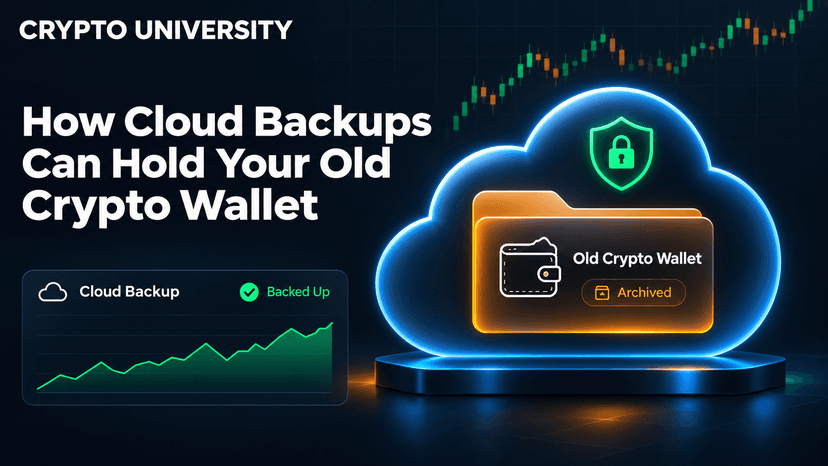
Your cloud account may hold an old wallet without you realizing it. Many mobile wallets offer encrypted backups to Google Drive or iCloud, and desktop wallet files often end up in folders that Dropbox, iCloud Drive, or Google Drive sync automatically.
A cloud backup is usually locked by a separate password. Wallets such as Coinbase Wallet, Trust Wallet, and Zerion encrypt the backup with a password you chose in the app, not your Google or Apple password.
Deleted files do not stay forever. Google Drive Trash, iCloud Recently Deleted, and free Dropbox accounts generally keep deleted items for about 30 days, so check soon and avoid deleting anything while you search.
Why the Cloud Is Worth Checking
When people lose track of old crypto, they usually search old laptops, drawers, and email. The cloud is easy to forget, because most of it works in the background.
There are three common ways a wallet ends up in cloud storage:
App-made backups. Many mobile wallets ask, during setup, if you want to save an encrypted copy of your recovery phrase to iCloud (on iPhone) or Google Drive (on Android).
Synced folders. If Dropbox, iCloud Drive, or Google Drive for desktop synced your Documents or Desktop folder, a wallet file you saved there was copied to the cloud too.
Things you saved yourself. Screenshots, photos of a paper backup, notes, or text files can all sync to Google Photos, iCloud Photos, or a notes app.
Each one needs a different search method, so this guide takes them one at a time.
Quick Reference: Where to Look
Cloud service | What it may hold | Where to check |
|---|---|---|
Google Drive | Encrypted app backups, uploaded wallet files, synced desktop folders | drive.google.com search, Trash, and Settings then Manage apps |
iCloud | Encrypted app backups, iCloud Drive files, photos, notes | Files app, iCloud.com Recently Deleted, and icloud.com/recovery |
Dropbox | Synced wallet files such as wallet.dat or default_wallet | Dropbox search, Deleted files, and Version history |
Photo libraries | Screenshots or photos of seed phrases | Search photos for words like "recovery" or "phrase" |
Type 1: Encrypted Backups Made by Wallet Apps
This is the most common way a wallet ends up in the cloud today.
How it works
The wallet app encrypts your recovery phrase on your phone, using a password you set. It then uploads the encrypted file to your personal iCloud or Google Drive account. To restore, you need two things:
Access to the same Google or Apple account used when the backup was made.
The backup password you created inside the wallet app.
Coinbase introduced this kind of backup for Coinbase Wallet in February 2019, using AES-256-GCM encryption. Its announcement noted that the phone must be signed in to the same Google or iCloud account that made the backup.
Wallets known to offer cloud backup
Wallet | Cloud options | What unlocks it |
|---|---|---|
Coinbase Wallet | iCloud on iOS, Google Drive on Android | Backup password set in the app |
Trust Wallet | iCloud and Google Drive | Encryption password set in the app |
Exodus (mobile) | Backup vault in iCloud or Google Drive | Cloud access plus the confirmation email or phone number |
Zerion, Uniswap Wallet, Xverse | iCloud and Google Drive | A separate backup password |
This list is not complete. Many other wallets offer similar features, so check the help pages of any wallet you remember using.
How to find an app backup
Reinstall the official wallet app from the App Store or Google Play, on a phone signed in to your old account.
Choose the restore option rather than creating a new wallet. Look for wording such as "Restore from iCloud" or "Restore from Google Drive."
On iPhone, open the Files app, tap iCloud Drive, and look for a folder named after the wallet. Trust Wallet, for example, uses a folder called Trust.
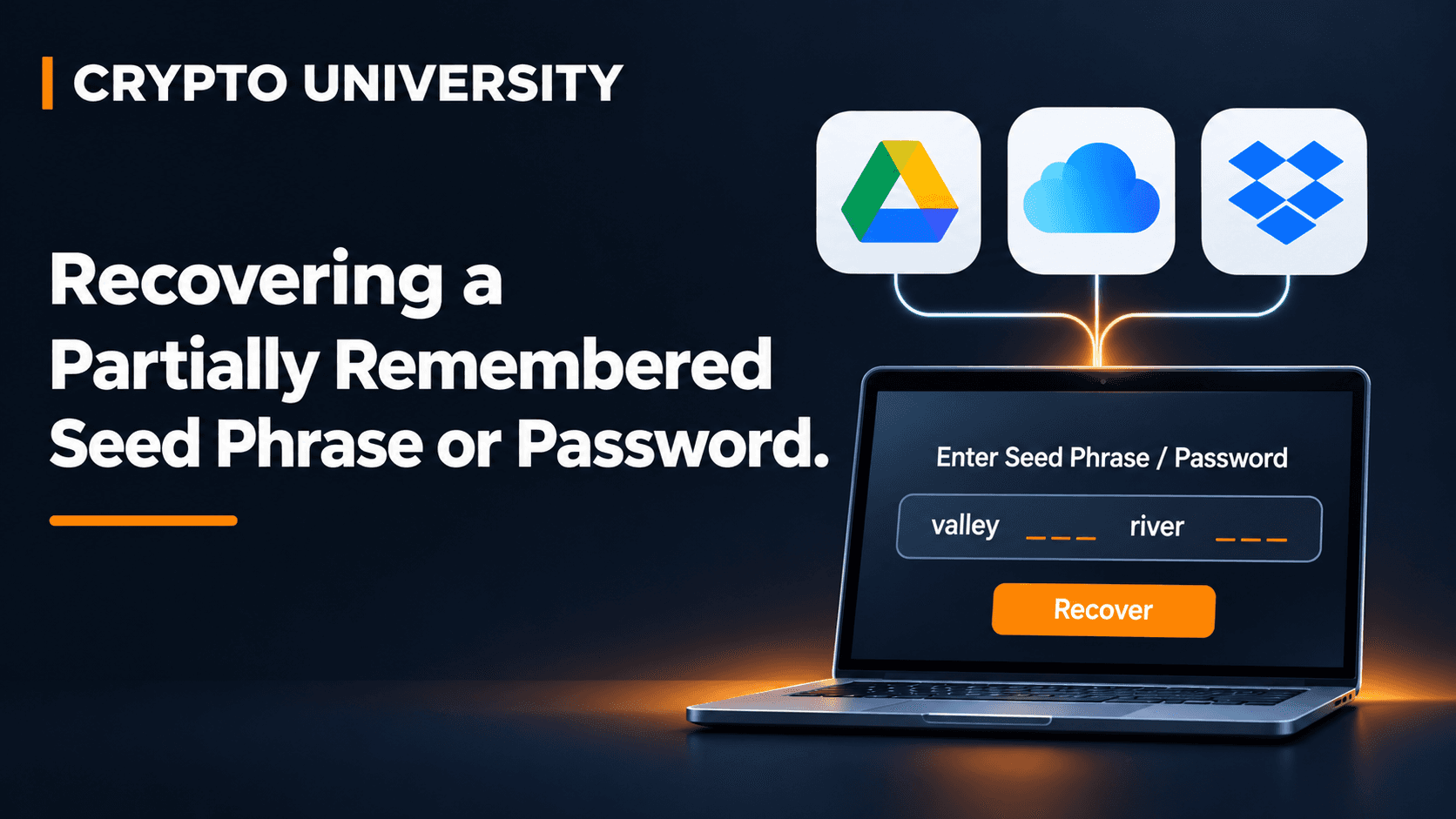
On Google Drive, some apps store backups as hidden app data that does not appear in your normal file list. On drive.google.com, open Settings, then Manage apps, to see which apps hold hidden data.
Do not click "Delete hidden app data" or "Disconnect from Drive" for any wallet app. That can remove the only backup you have.
Type 2: Wallet Files Synced by Dropbox, iCloud Drive, or Google Drive
Desktop wallets such as Bitcoin Core, Electrum, and MultiBit save their data to a folder on your computer. If you moved that file, or saved a backup copy, into a synced folder, the cloud kept a copy.
File names to search for
Wallet | File name |
|---|---|
Bitcoin Core | wallet.dat |
Electrum | default_wallet, or a name you chose |
MultiBit Classic | files ending in .wallet or .key |
MultiBit HD | mbhd.wallet.aes |
Exodus desktop | exodus.wallet folder |
Bitcoin Wallet for Android (Schildbach) | bitcoin-wallet-backup followed by a date |
Older Android users should note the last row. The Bitcoin Wallet app by Andreas Schildbach could export backup files, and many people sent them to Google Drive or email. These files are protected by the password set at export time, and they generally need that app or a dedicated decoder tool to restore.
Step by step
Sign in on the web, not just the desktop app, so you see every file stored online.
Search each file name from the table above.
Check deleted files. In Dropbox, click Deleted files in the sidebar. In Google Drive, open Trash. In iCloud, open Recently Deleted on iCloud.com.
Check older versions. If a wallet file was overwritten, Dropbox version history and Google Drive version history may still hold an older copy for a limited time.
Download a copy to a clean computer before you try to open it.
Type 3: Screenshots, Photos, and Notes
Some people took a screenshot of their seed phrase or a photo of the paper backup. If photo sync was on, that image may still sit in Google Photos or iCloud Photos.
Try searching your photo library for words such as "recovery phrase," "seed," "backup," or the wallet's name. Both Google Photos and Apple Photos can search text inside images. Also check iCloud Notes, Google Keep, and any document you might have titled "crypto" or "bitcoin."
If you find one, move it offline. Security researchers at Kaspersky and Check Point have reported malware, known as SparkCat and SparkKitty, that scans phone galleries for seed phrase screenshots. Once you have restored or written down the phrase, delete the image from the phone, the cloud, and the trash folder.
How Long Cloud Services Keep Deleted Files
Service | Typical recovery window for deleted files |
|---|---|
Google Drive (personal) | 30 days in Trash, then permanently deleted |
iCloud Drive | 30 days in Recently Deleted or Data Recovery |
Dropbox Basic, Plus, Family | 30 days |
Dropbox Professional, Standard, Essentials | 180 days |
Dropbox Advanced, Enterprise, Business Plus | 365 days |
Google Drive also keeps previous versions of uploaded files for up to 30 days or 100 versions, unless a version was marked "Keep forever." These windows can change, so confirm on each provider's help pages.
What If You Forgot the Backup Password?
This is the most common roadblock. The encryption is designed so that Google, Apple, and the wallet company cannot read your backup. That protects you from attackers, but it also means support staff cannot reset the password for you.
Sensible options include:
Try passwords you used around that time, including variations and old patterns.
Check your password manager and the browser's saved passwords for the wallet's name.
Look for the original seed phrase on paper, which bypasses the backup password entirely.
Research reputable recovery services carefully, if the amount justifies it. Never hand over a file to someone who contacted you first.
Safety Rules Before You Restore
Secure the cloud account first. Turn on two-factor authentication and change the account password if it is old or reused.
Download apps only from official sources. Fake wallet apps are a known way to steal backups.
Never upload a wallet file or seed phrase to a website or share it in a chat.
Work on copies. Keep the original file untouched until any funds are safely moved.
Consider moving funds to a fresh wallet after recovery, since an old backup may have been exposed over the years.
FAQ
Can Google or Apple see my wallet backup? For wallets that encrypt before uploading, no. Wallets such as Coinbase Wallet, Trust Wallet, and Xverse say the backup can only be decrypted with your own password.
Why can't I see my wallet backup in Google Drive? Some wallet apps store backups as hidden app data. Open Settings, then Manage apps, on drive.google.com to see which apps hold data. You usually restore through the wallet app itself.
Is a cloud backup the same as a seed phrase? No. A cloud backup is usually an encrypted copy of your seed phrase. The seed phrase itself works in any compatible wallet, while the cloud backup normally only works in the app that created it.
I deleted my wallet backup by mistake. Can I get it back? Possibly, if you act fast. Check Google Drive Trash, iCloud Recently Deleted or icloud.com/recovery, and Dropbox Deleted files. Most personal plans keep deleted files for about 30 days.
Should I keep my seed phrase in the cloud? Most wallet providers and security researchers advise keeping a plain seed phrase offline. An encrypted app backup with a strong, unique password is a different case, but many wallets still recommend a paper copy as well.
Related Terms
Seed Phrase: A list of 12 to 24 words that can restore a self-custody wallet and all of its keys.
Encryption: A method of scrambling data so that only someone with the correct key or password can read it.
Hot Wallet: A crypto wallet that runs on an internet-connected device, such as a phone or desktop app.
Disclaimer
This article is for educational purposes only and is not financial, legal, or technical recovery advice. Cloud features and retention periods change over time. Always follow the official help pages of your wallet and cloud provider.
Sources
Coinbase's cloud backup announcement explains AES-256-GCM encryption and same-account restore.
Trust Wallet's recovery phrase storage guide covers enabling encrypted cloud backup.
Exodus support on the backup vault explains iCloud and Google Drive storage.
Zerion's cloud backup help page advises using a separate backup password.
Uniswap's iCloud and Google Drive backup FAQ clarifies that the backup password differs from your cloud password.
Dropbox's data retention policy lists recovery windows by plan.
Apple's missing iCloud Drive files guide covers Recently Deleted and Data Recovery.
Kaspersky's SparkKitty report warns against storing seed phrase screenshots.