Key Takeaways
- If your wallet fails on every single site, the problem is almost always on your side, such as the wallet, the browser, or the device, and not the website you are trying to use.
- Most connection failures come from a short list of causes: a locked wallet, two wallet extensions fighting over the same browser slot, stale site permissions, or an expired WalletConnect session.
- You never need to enter your seed phrase to fix a connection problem. Any tool, person, or website that asks for it during troubleshooting is a scam.
Why This Problem Is Worth Diagnosing Properly
Clicking "Connect Wallet" and getting nothing back is one of the most common frustrations in crypto. The screen does nothing, spins forever, or shows an error with no explanation.
The important detail is the word any. If one site fails but others work, the site is probably broken. If every site fails, something in your own setup is blocking the handshake. That distinction changes the entire fix, so check it first.
This guide works through the causes in the order a support engineer would test them.
What "Connecting a Wallet" Actually Does
Connecting a wallet is not a login and it is not a transfer. It is a permission handshake.
When you press connect, the website asks your wallet software for two things: permission to see your public address, and permission to send you transaction requests that you can approve or reject later. No funds move at this stage. No private key is shared.
On a desktop browser, this handshake happens through code that your wallet extension injects into the web page. On mobile, it usually happens through WalletConnect, a relay protocol that passes messages between the site and your wallet app.
This matters because it tells you where things can break: the extension, the browser, the relay, or the permissions record. Each has a different fix.
Step 1: Confirm the Problem Really Is Every Site
Test three unrelated, well known sites before changing anything. Use official URLs you bookmarked or typed yourself.
| What you observe | Most likely cause | Where to look |
|---|---|---|
| One site fails, others work | The site is down or its code is broken | The project's status page or social account |
| Every site fails on one browser | Browser, extension, or permissions problem | Your browser settings |
| Every site fails on every browser and device | Wallet app, network, or account level problem | Your wallet app and internet connection |
| Sites connect but transactions fail | Network or RPC problem, not a connection problem | Your wallet's network settings |
Step 2: The Five Minute Checklist
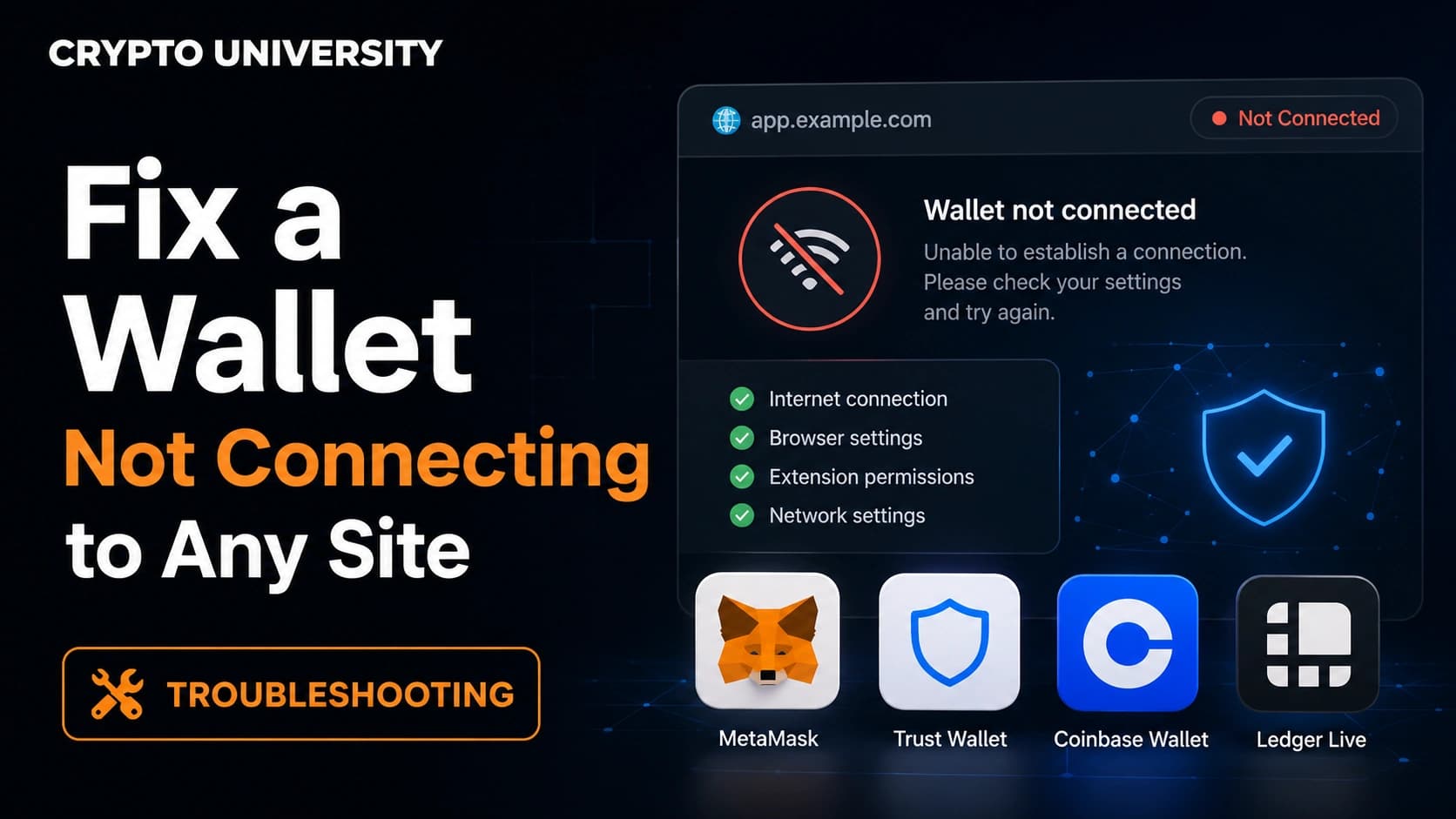
Run these in order. They resolve a large share of cases and carry no risk.
- Unlock the wallet. A locked wallet often produces silence rather than an error message.
- Reload the page after unlocking. The site checks for a wallet when it loads, so it may need a fresh look.
- Check for a hidden popup. The approval window can open behind your browser or be blocked. Click the wallet icon in your toolbar to see pending requests.
- Check your internet connection. Wallet connections use live web socket links that fail on unstable or restricted networks.
- Update the wallet and the browser. Old versions can miss the connection standards that newer sites expect.
- Restart the browser completely, not just the tab.
Common Causes and Their Fixes
| Cause | What it looks like | Fix |
|---|---|---|
| Wallet is locked | Nothing happens on click | Unlock, then reload the page |
| Two or more wallet extensions installed | Wrong wallet opens, or none opens | Disable the extensions you are not using |
| Stale site permissions | Site thinks you are connected but you are not | Disconnect the site in the wallet, then reconnect |
| Old cached session data | Connect button hangs with no popup | Clear site data, or use a private window |
| Expired WalletConnect session | QR code scans but nothing loads | Disconnect all sessions in the wallet app |
| VPN, firewall, or ad blocker | Fails only on certain networks | Test on a different network with blockers off |
| Hardware wallet not detected | Wallet connects but device does not | Check the browser's device permissions |
Fixing Browser Extension Wallets
Desktop wallets historically all wrote themselves into the same slot in the web page, called window.ethereum. Because browser extensions load in an unpredictable order, this created a race condition where the last wallet to load usually won, and the user had no control over which one the site saw.
A newer standard, EIP-6963, fixed this by letting each wallet announce itself so the site can list all of them. The standard recommends that sites adopt it and treat the old method only as a fallback, while wallets keep supporting the old method for sites that have not upgraded. Many sites still have not upgraded, which is why extension conflicts remain a top cause.
What to do:
- Open your browser's extension manager. In Chrome this is
chrome://extensions. - Turn off every wallet extension except the one you want to use. Wallet support pages confirm that other wallet software needs to be disabled for the intended wallet to work properly, and that the page should be reloaded afterwards.
- Reload the site and try again.
- If it works, either keep one wallet active or run each wallet in a separate browser profile.
Clear stale permissions. Open your wallet's connected sites list, remove the site, then reconnect from the site itself. Leftover permission records are a frequent cause of a connect button that does nothing.
Test in a private window. If the wallet works there with other extensions off, the problem is cached data or another extension, not the wallet.
Fixing Mobile Wallets and WalletConnect
Mobile problems usually come down to leftover sessions or blocked links.
- Clear old sessions. Open your wallet app, find the WalletConnect or connected apps list, and disconnect everything. Wallet support documentation consistently points to stale sessions as the most common cause and recommends clearing all of them before trying again.
- Get a fresh QR code. Reload the site so it generates a new pairing code. Old codes expire.
- Fix broken deep links. If tapping your wallet does nothing, copy the connection link from the site and paste it into your wallet app's connection field manually.
- Force close both apps. A stuck relay connection often clears with a full restart of the wallet app and the browser.
- Check the network path. Corporate networks, some VPNs, and strict firewalls can block the web socket traffic the relay needs. Switching to mobile data is a quick test.
- Confirm the wallet is installed. Deep linking fails silently if the app is not on the device.
Fixing Hardware Wallet Connections
Hardware wallets add a layer, and each layer can fail independently.
- Unlock the device and open the right app on it, for example the Ethereum app for Ethereum sites.
- Use a supported browser. Chromium based browsers support the modern WebHID connection method. Ledger has advised that a Firefox update broke the older U2F method used to connect hardware wallets through MetaMask, and recommends browsers that support U2F or WebHID instead.
- Grant device permission in your browser settings. Chrome keeps HID device access as a separate permission from normal site permissions.
- Close the desktop companion app. Only one program can hold the USB port at a time.
- Swap the cable and port. Charge only cables are a surprisingly common culprit.
Network and RPC Problems
If the wallet connects but balances show as zero or transactions never confirm, this is not a connection problem. It is a data problem.
Your wallet reads the blockchain through an RPC endpoint. When that endpoint is slow or down, the wallet looks broken. Switching RPC provider in your network settings, or re-adding the network with its official settings, usually resolves it.
Also confirm you are on the network the site expects. A site built for one chain will not respond correctly if your wallet is set to another.
The Last Resort: Reinstalling
Reinstall only after everything else fails, and only with preparation.
First confirm you have your recovery phrase stored safely offline and that you can read it. Then remove the extension or app, install it again from the official source, and restore your wallet.
Never search for your wallet's download page and click the first result. Fake wallet extensions and paid search ads are a known route for distributing theft software.
Safety Rules While Troubleshooting
Connection problems create urgency, and urgency is what scammers rely on.
- Never type your seed phrase into any website, form, or support chat. No legitimate fix requires it.
- There is no wallet support phone number. Pages advertising one are fake and rank in search results specifically to catch people in this situation.
- Ignore unsolicited help. Anyone who appears in your replies or messages offering to fix your wallet is not there to help you.
- Do not install "wallet repair" tools. They do not exist as a category.
- Use official help pages only, reached from the wallet's own domain.
Your funds are on the blockchain, not inside the app. A wallet that will not connect is an access problem, not a loss. That is worth remembering before you do anything drastic.
When It Really Is the Site
If your wallet connects fine elsewhere, stop troubleshooting your setup and check the project's official status updates. Sites take contracts offline, break their own code during deployments, and restrict access by region. None of that is fixable from your end, and changing wallet settings to chase it only adds risk.
Frequently Asked Questions
Does connecting a wallet give a site access to my funds? No. Connecting shares your public address and allows the site to send you transaction requests. Funds only move when you approve a specific transaction. The risk sits in what you approve afterwards, not in the connection itself.
Why does the wrong wallet open when I click connect? You likely have more than one wallet extension active, and the site is using the older detection method that only recognises one of them. Disable the extensions you are not using and reload the page.
Will clearing my browser cache delete my wallet? Clearing normal browsing data does not remove an installed extension or its stored wallet. Removing the extension itself does, which is why you should confirm you have your recovery phrase before uninstalling anything.
My wallet connects but shows a zero balance. Is that the same problem? No. That points to a network or RPC issue. Check that you are on the correct network and try a different RPC endpoint.
Should I reinstall my wallet to fix this? Only as a last step, and only once you have confirmed your recovery phrase is safely stored offline and readable.
Five Related Terms
- Injected provider: the code a browser wallet places into a web page so sites can detect it.
- EIP-6963: the standard that lets multiple browser wallets announce themselves without conflicting.
- WalletConnect: the relay protocol that links mobile wallets to websites.
- Site permissions: the record in your wallet of which sites may see your address.
- RPC endpoint: the server your wallet uses to read blockchain data.
Sources
- MetaMask Help Center, "I can't connect MetaMask Extension to a dapp": https://support.metamask.io/more-web3/dapps/i-cant-connect-metamask-extension-to-a-dapp-/
- Ethereum Improvement Proposals, EIP-6963: Multi Injected Provider Discovery: https://eips.ethereum.org/EIPS/eip-6963
- Ledger Support, "Firefox and MetaMask connection issues": https://support.ledger.com/article/10525823141917-zd
- Trust Wallet Support, "Unable to Connect to a dApp WalletConnect": https://support.trustwallet.com/support/solutions
- Pera Wallet Knowledgebase, "Resolving WalletConnect Issues": https://support.perawallet.app/en/article/resolving-walletconnect-issues-1tolptm/
Further Reading
- EIP-1193: Ethereum Provider JavaScript API at eips.ethereum.org. The original standard that defines how sites and wallets talk to each other, and useful background for why extension conflicts happen.
- MetaMask Help Center, "How to fix issues connecting to a decentralized exchange" at support.metamask.io. A narrower walkthrough for exchange specific connection failures.
- Ledger Academy, hardware wallet setup and browser guides at ledger.com/academy. Covers device permissions, browser support, and safe connection practices in more depth.
Disclaimer: This article is educational content. It is not financial, investment, tax, or legal advice. Network behaviour, fees, and explorer interfaces change over time, so verify current details against official documentation before relying on them.
Not sure which problem you have?
Use the Fixing Crypto Mistakes hub to identify the transaction, wallet, network, or exchange issue before taking another action.
OPEN TROUBLESHOOTING HUB