Bitcoin.com Wallet Tutorial
Contents:
- How To Sign Up for A New Bitcoin.com Wallet
- Buying Cryptocurrency
- Sending Cryptocurrency
- Receiving Cryptocurrency
- Security
- Adding BTC/BCH Wallets
- Bitcoin.com Swap
- Bitcoin.com Discover
1. How To Sign Up for A New Bitcoin.com Wallet
1.1 Install the free APP on mobile iOS or Android:
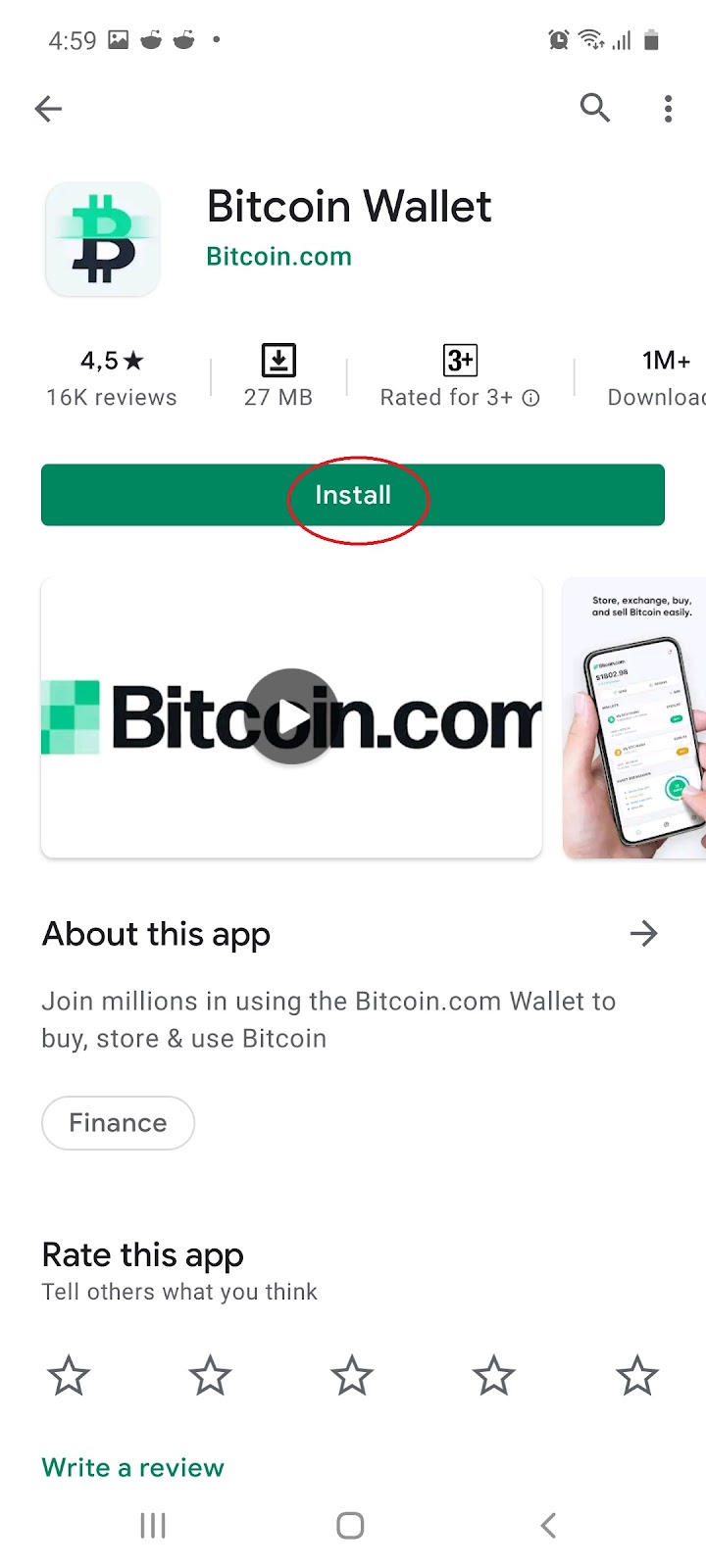
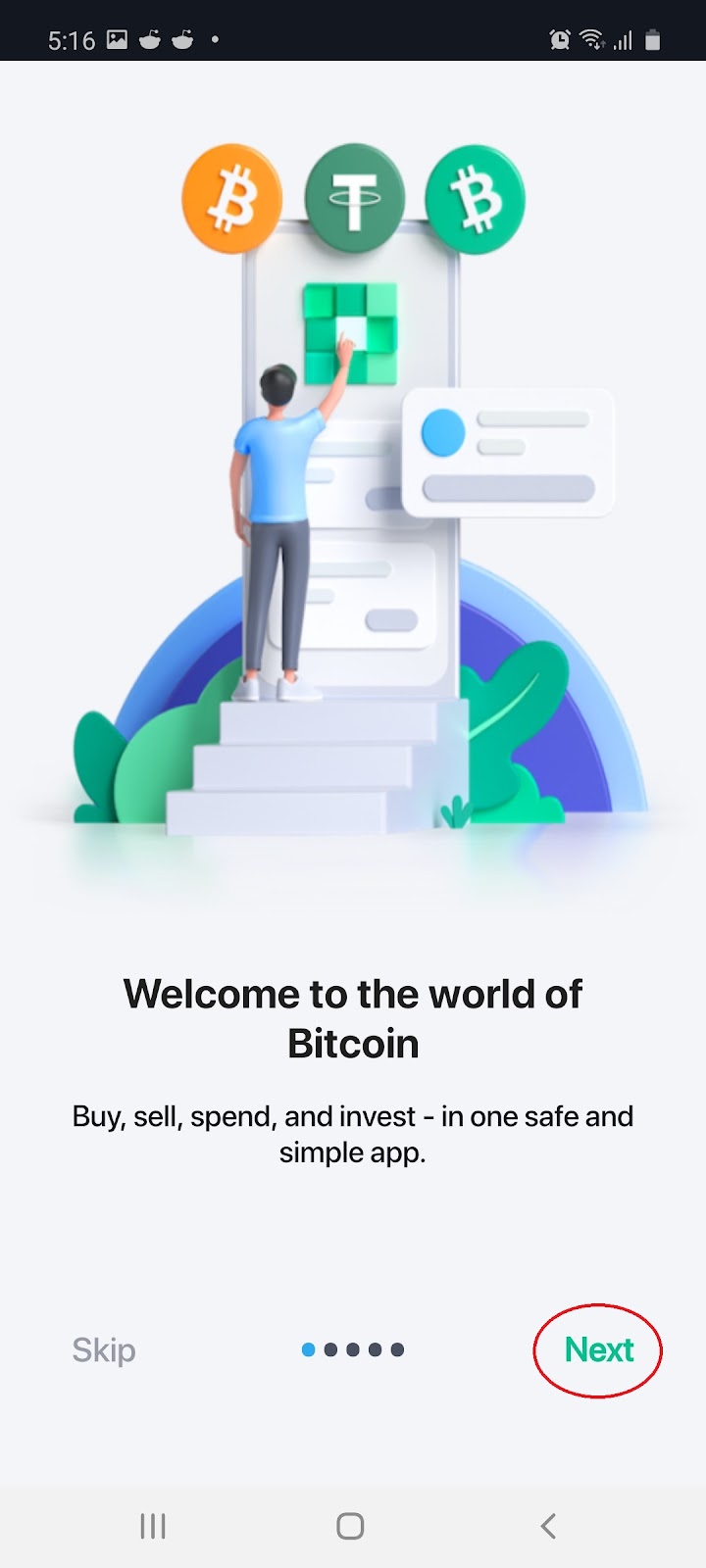
1.2 Once installed, open the APP and select ‘Next’ and choose to ‘Continue Anonymously’:
 →
→ 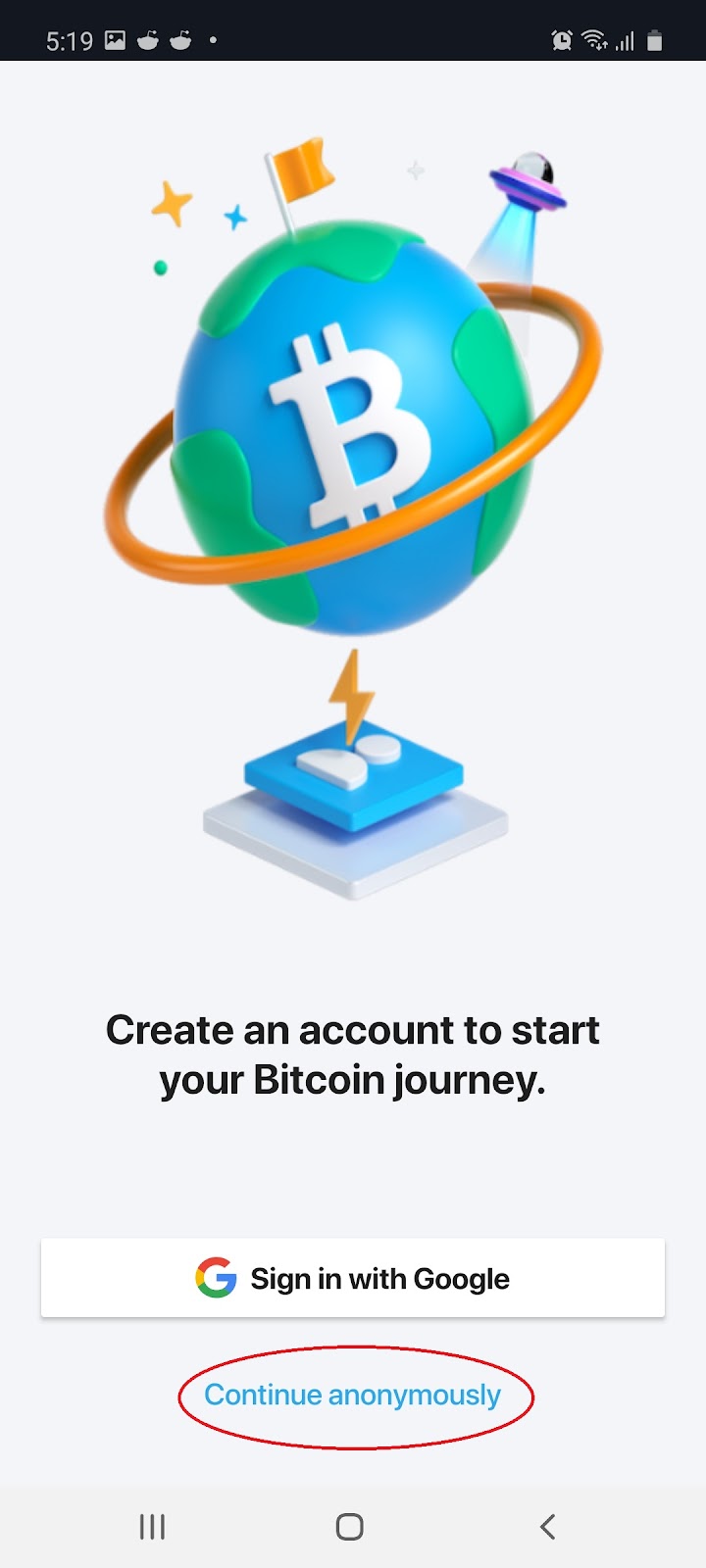
Note: The Bitcoin.com Wallet does not require KYC verification. Once the installation process is complete, you’ll be directed to the home screen.
2. Buying Cryptocurrency
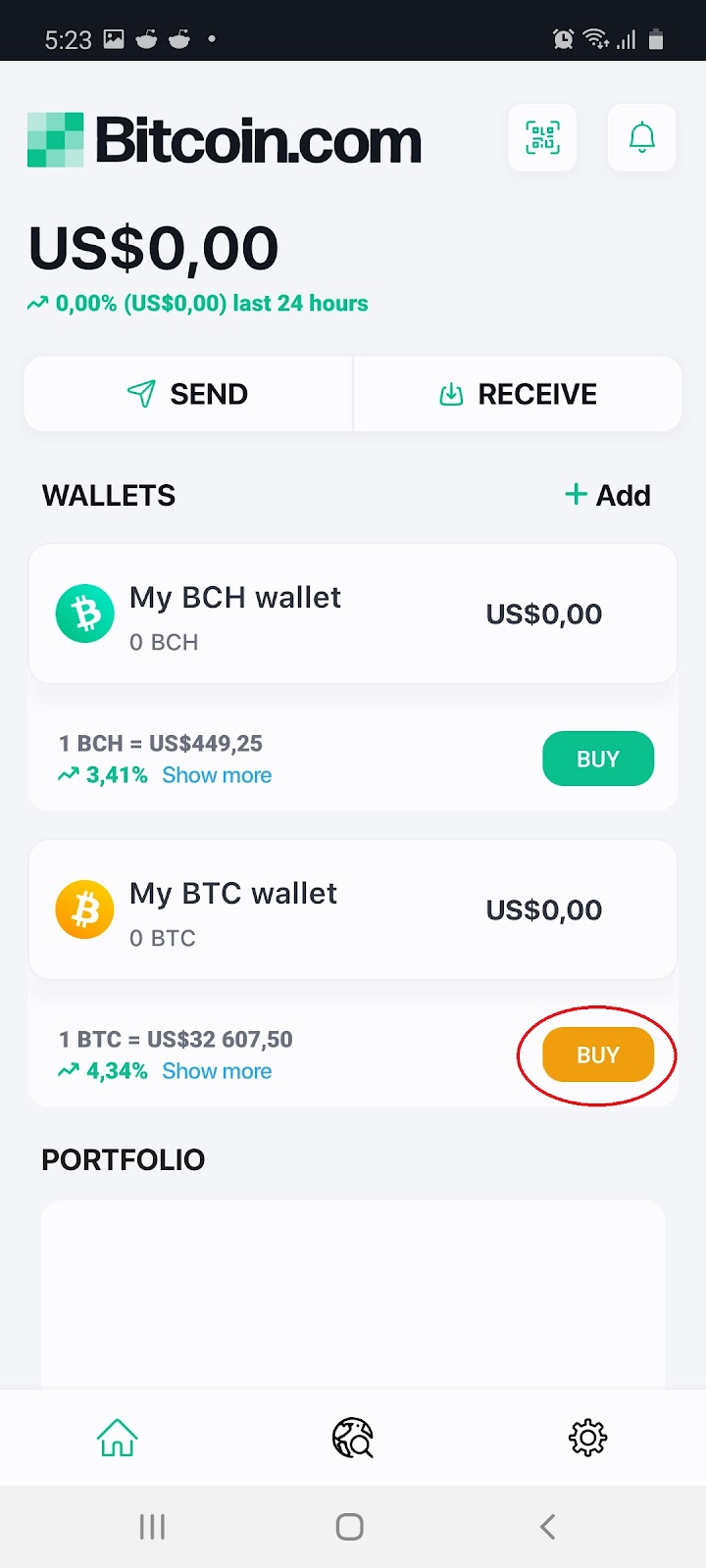
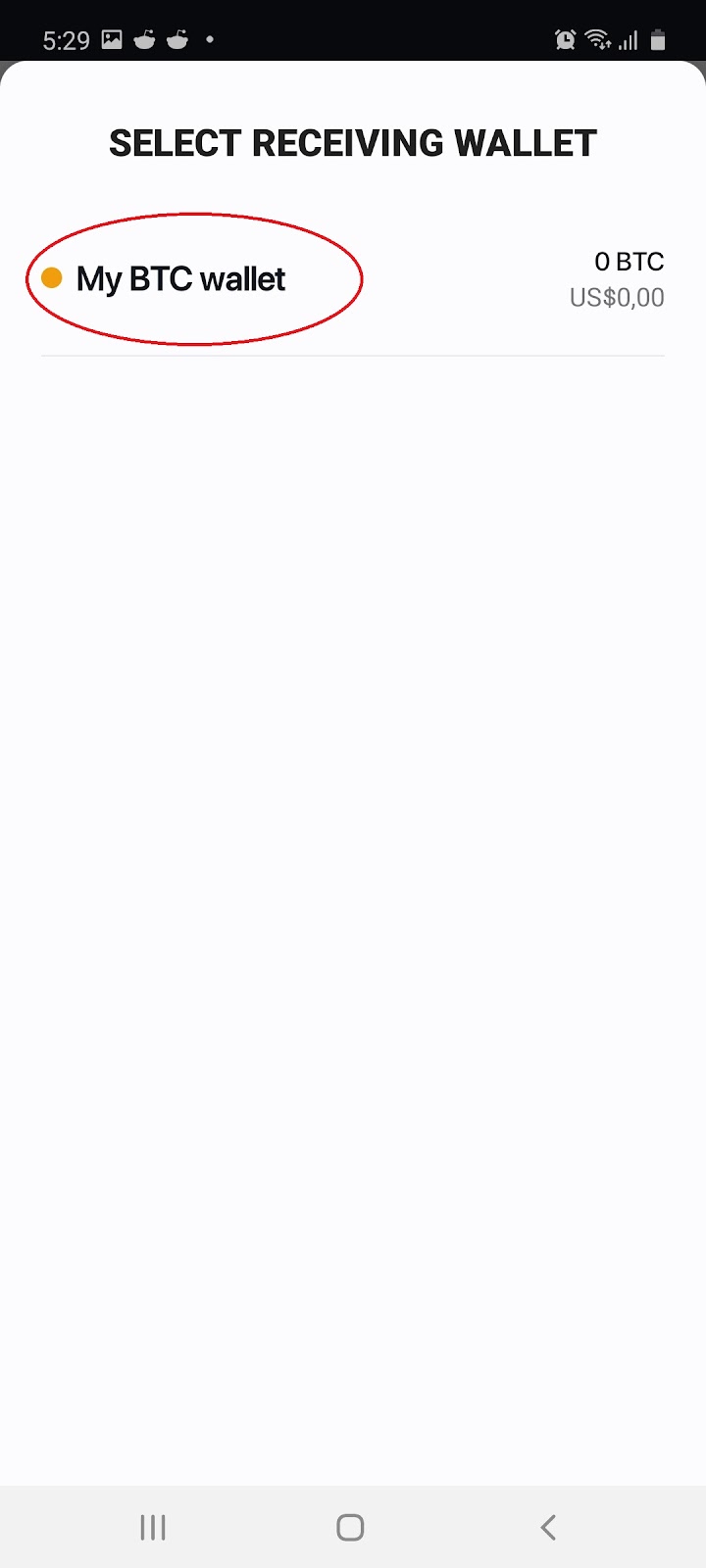
2.1 On your home screen select to buy Bitcoin and then select ‘My BTC Wallet’:
 →
→ 
2.2 Fill in the amount and select ‘Buy Now’:
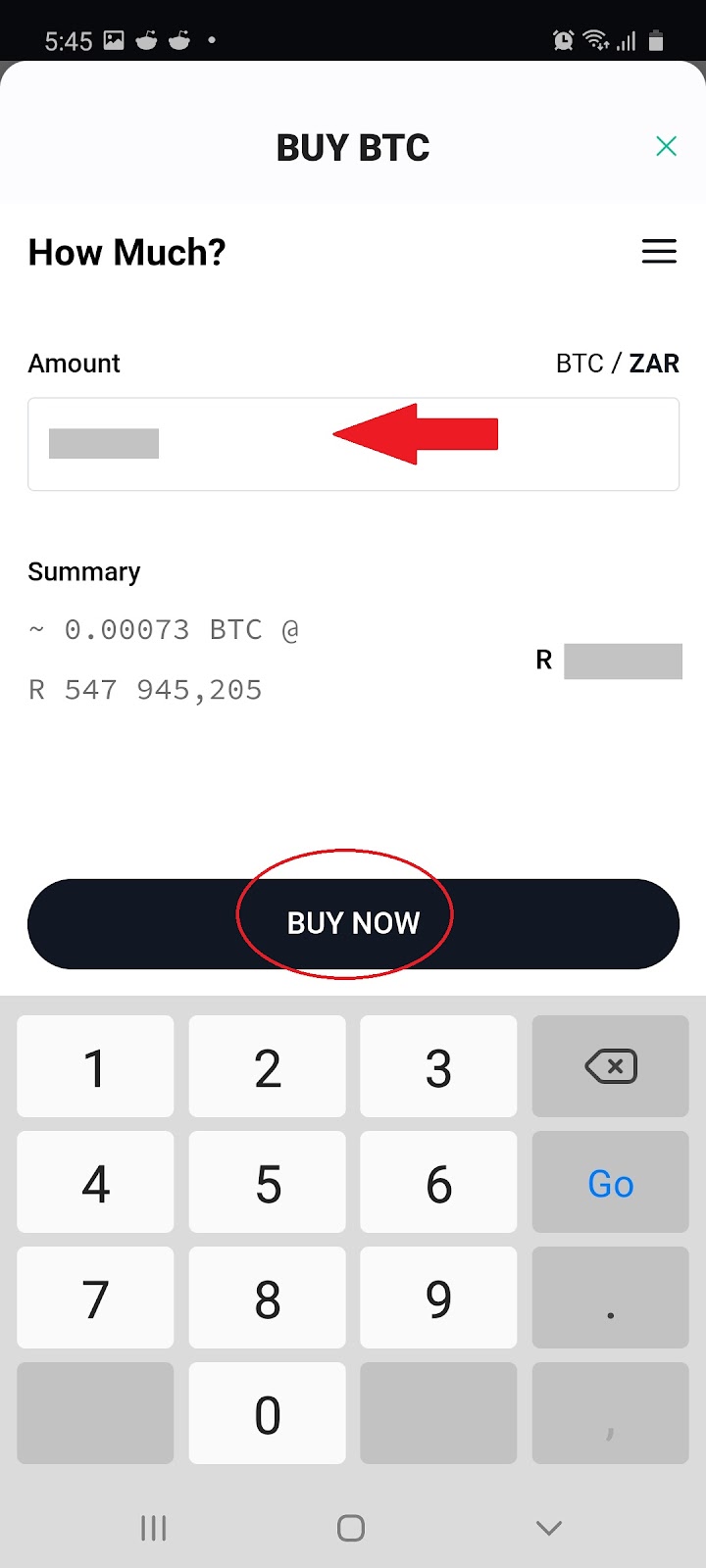
Note: A minimum of $20 is required to proceed. For your first purchase, you will be prompted to verify your identity and to add in your credit card details.
3. Sending Cryptocurrency
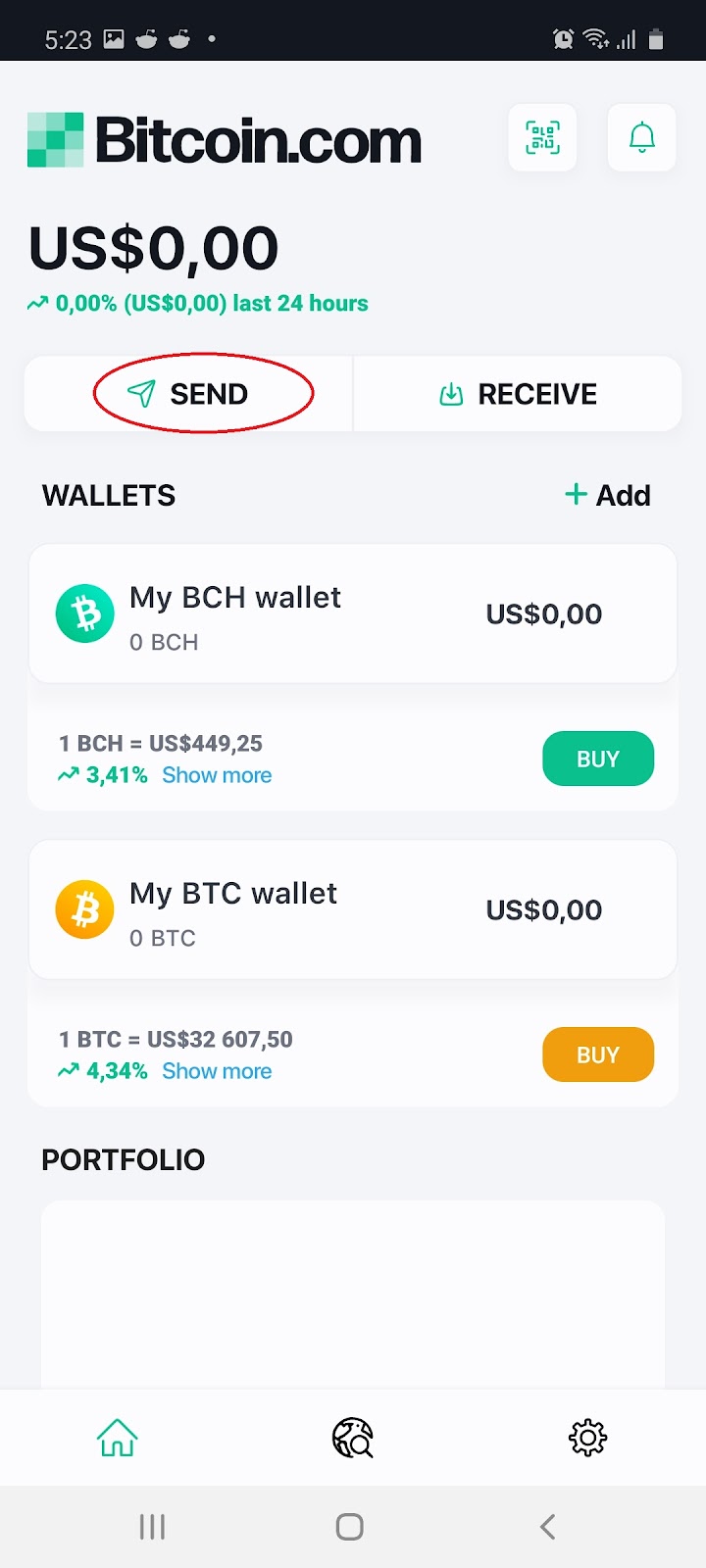
3.1 On the home screen select the ‘Send’ icon or tap the QR Code:
 or
or 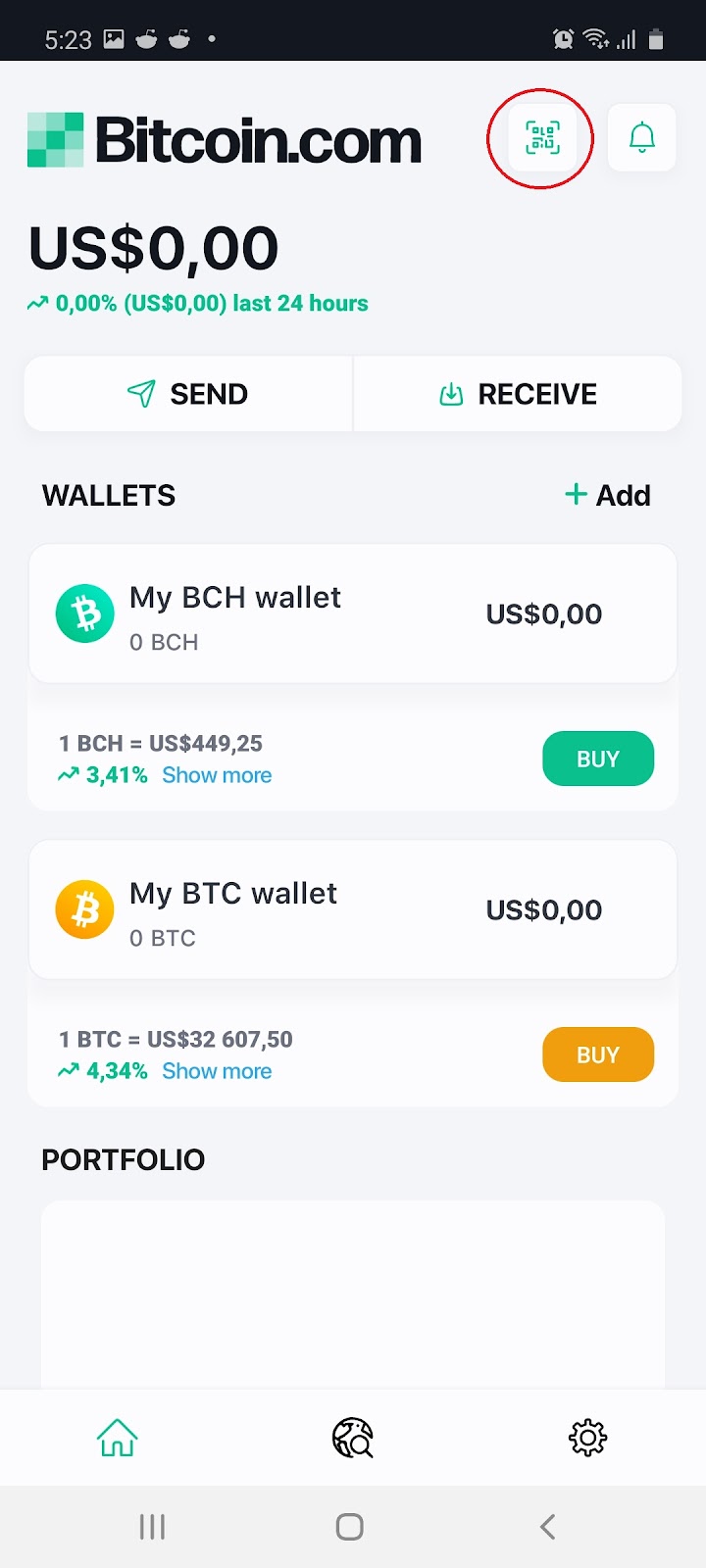
Note: Copy and paste the recipient’s wallet address into your own wallet app. Or, if you’re in person, select Scan QR code and simply scan it with your app. You will be prompted to review and then confirm your withdrawal decision. The transaction fee varies according to the amount you intend on sending/withdrawing.
4. Receiving Cryptocurrency
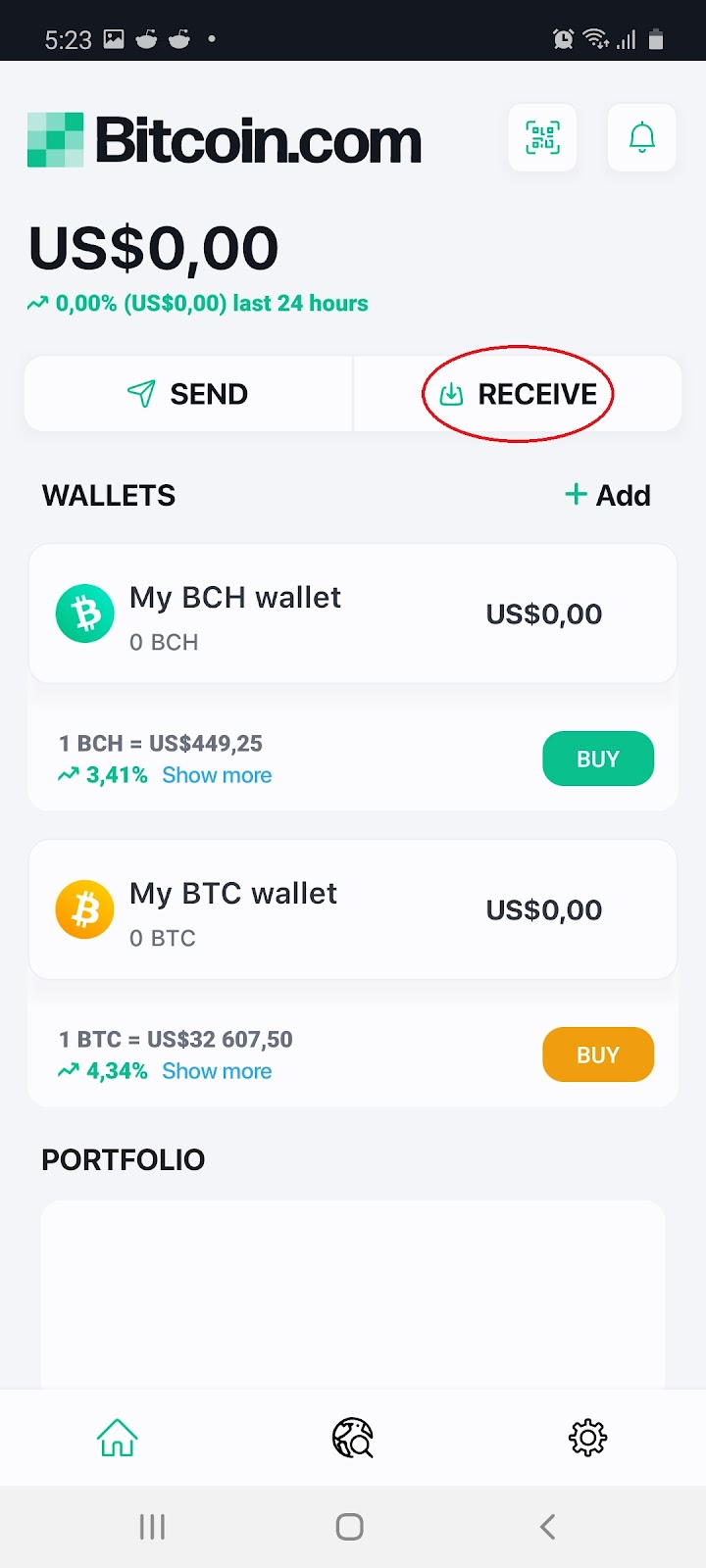
4.1 Select ‘Receive’ and then select the currency and wallet you would like to receive in:
 →
→ 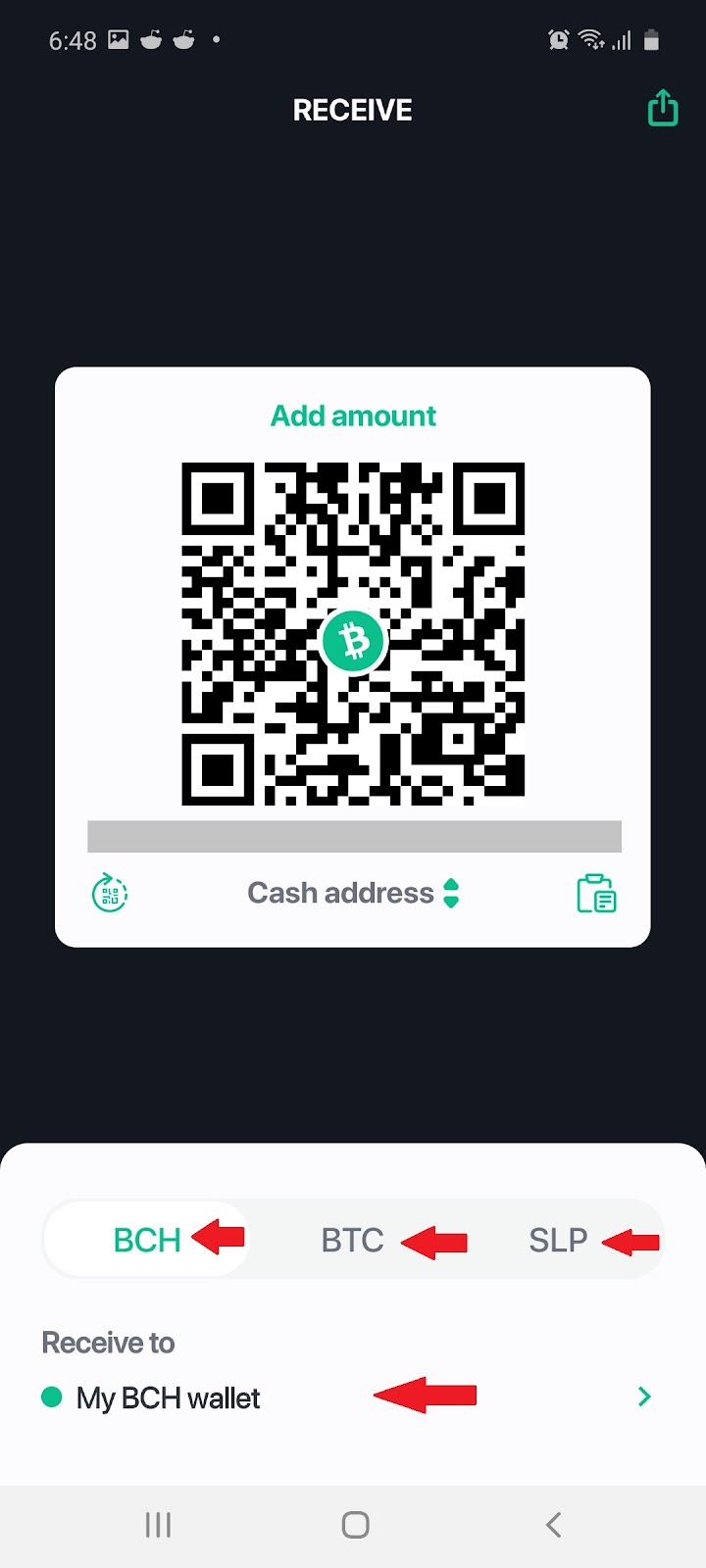
4.2 Your unique QR code will appear as well as your receive address:
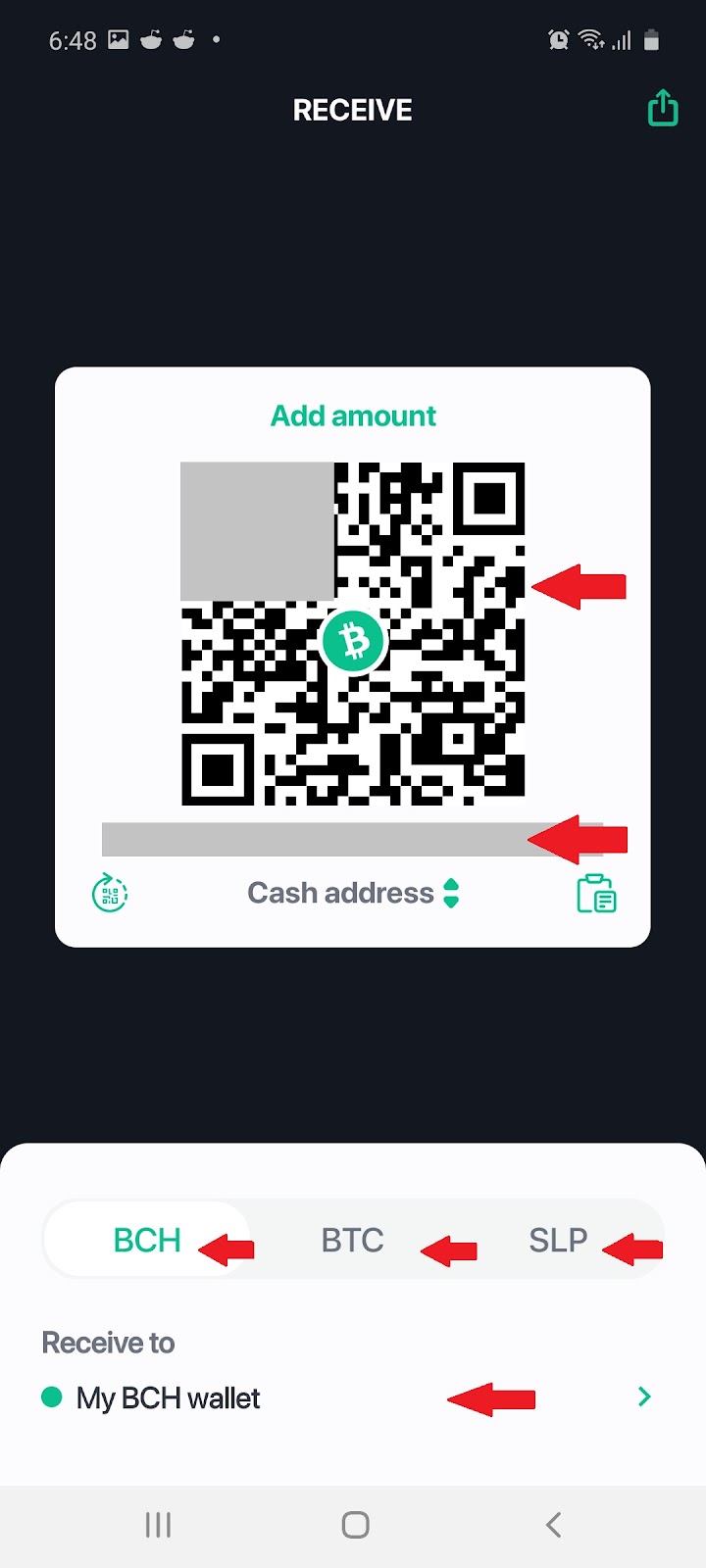
Note: You can receive crypto via scanning your QR code or sharing your address. It takes some time for blocks to be validated, so your received crypto will take a while to appear.
5. Security
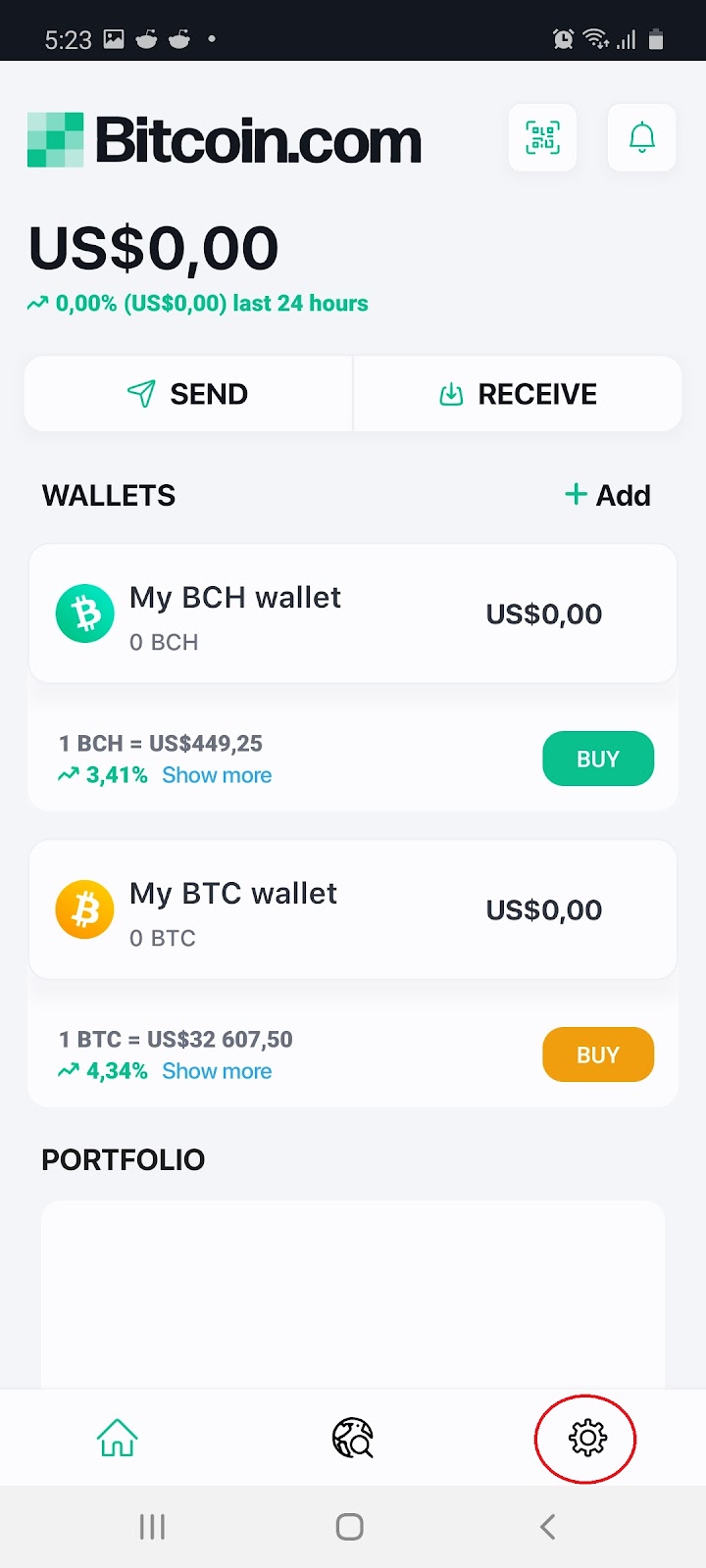
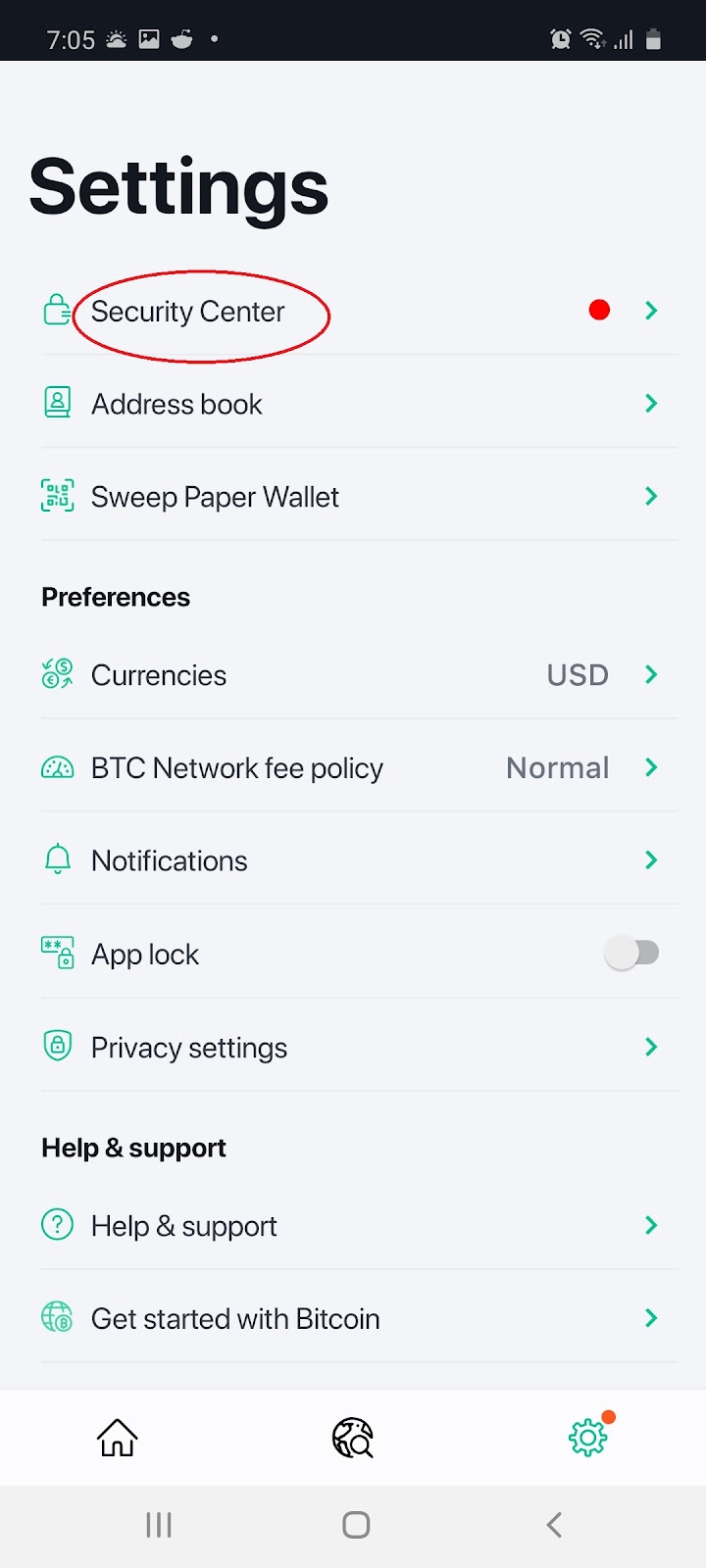
5.1 From your home screen, select the ‘Settings’ icon, and then select ‘Security Center’:
 →
→ 
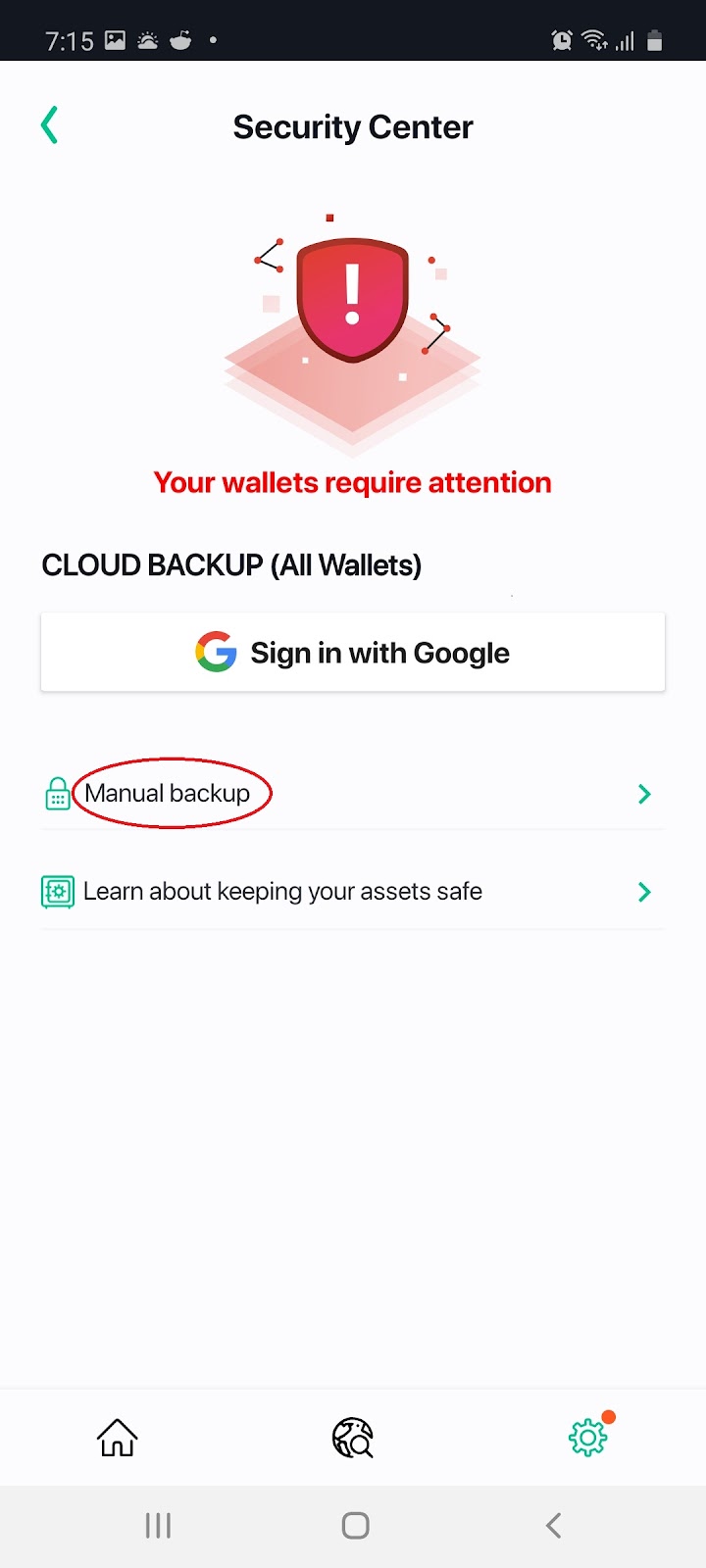
5.2 From the drop down select ‘Manual Backup’ and select which wallets to back up:
 →
→ 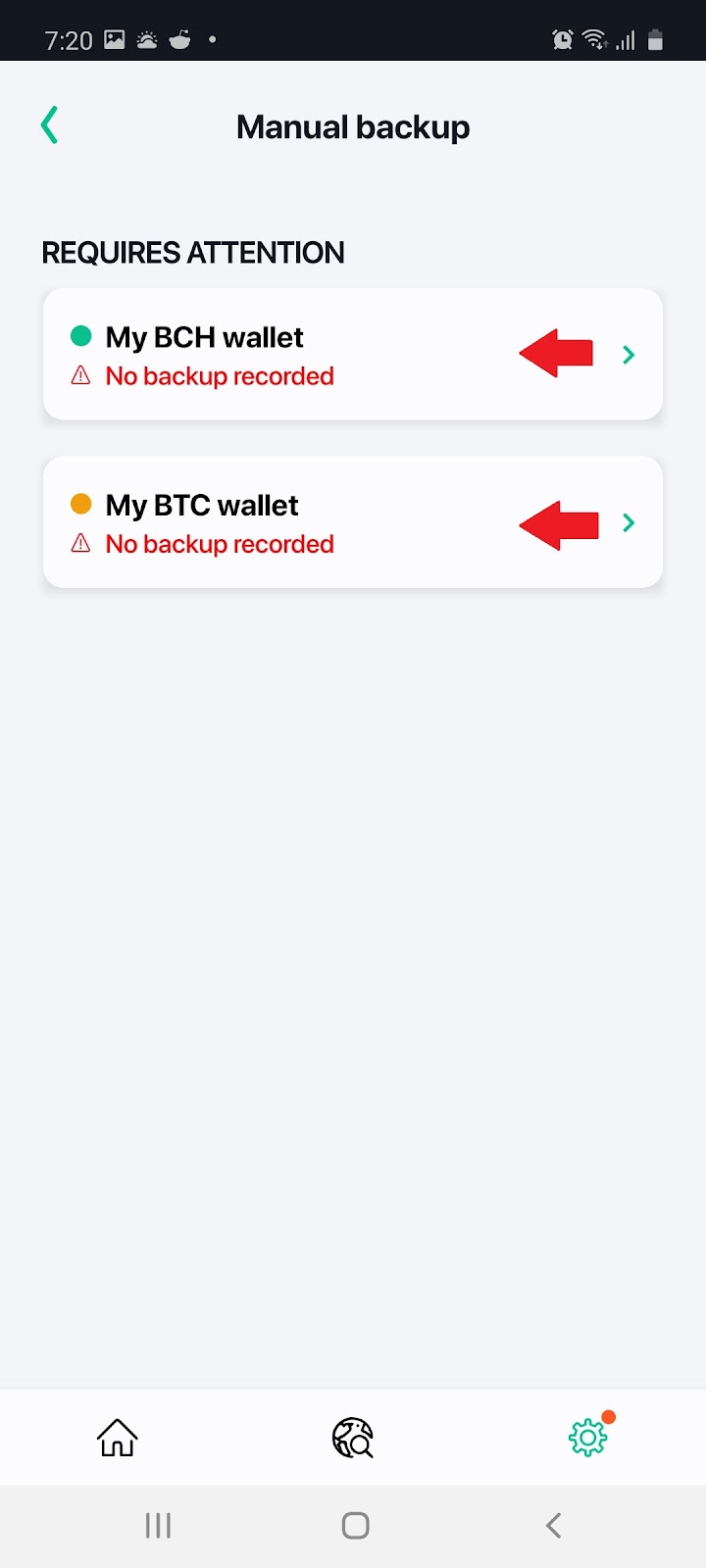
Note: Your 12-word recovery phrase will appear for each wallet. Make sure to write it down and keep it safe, as it’s the only way of recovering your funds if you forget your information.
6. Adding BTC/BCH Wallets
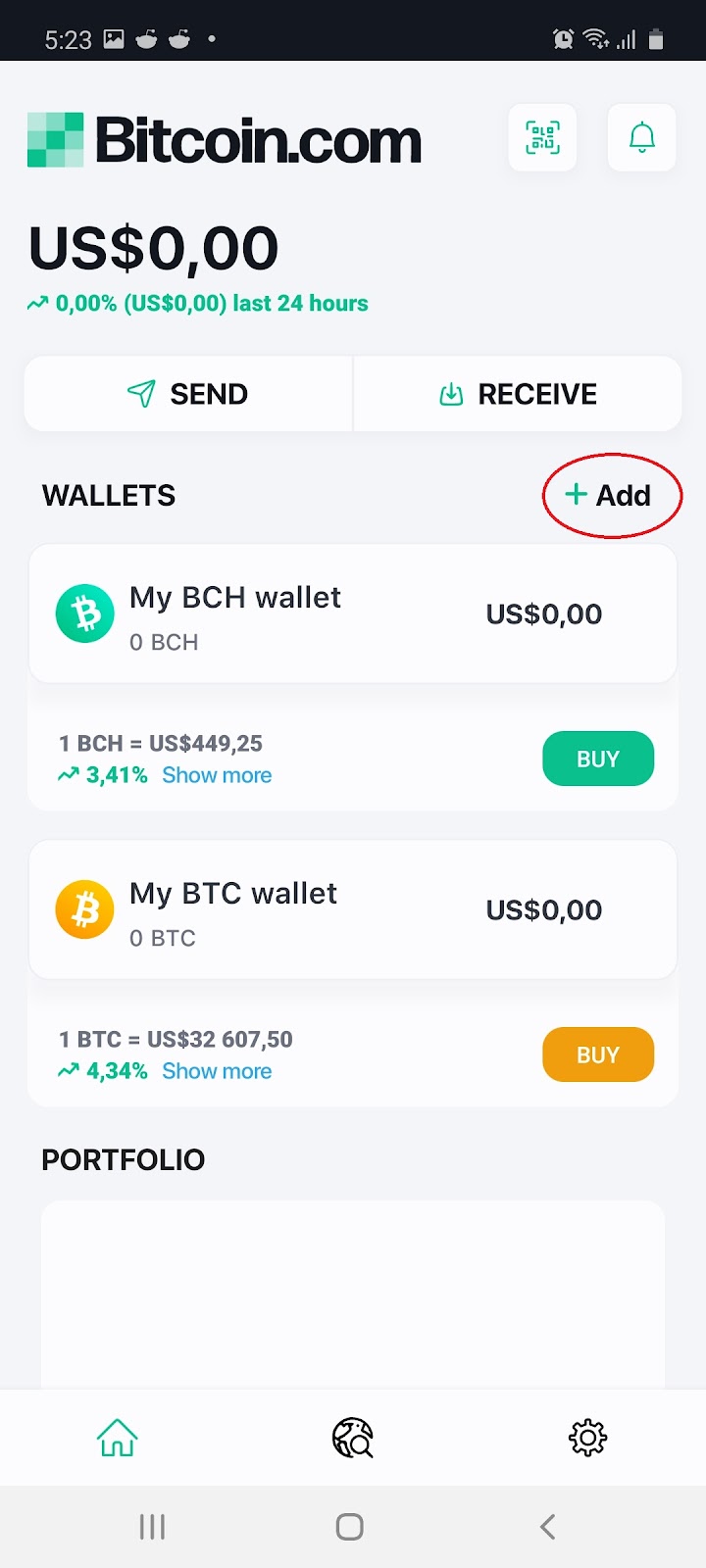
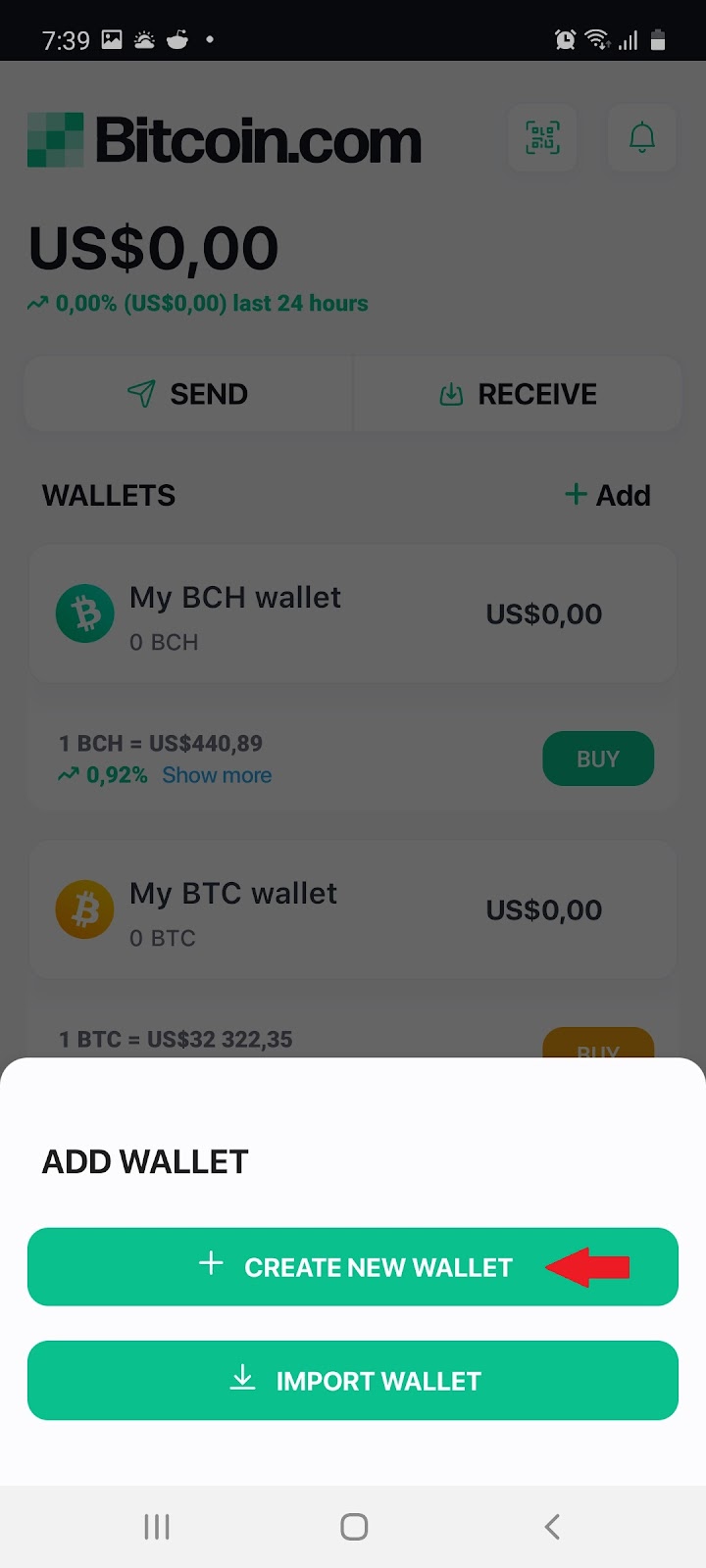
6.1 Select ‘Add’ on the home screen, then select ‘Create New Wallet’ from the pop-up :
 →
→ 
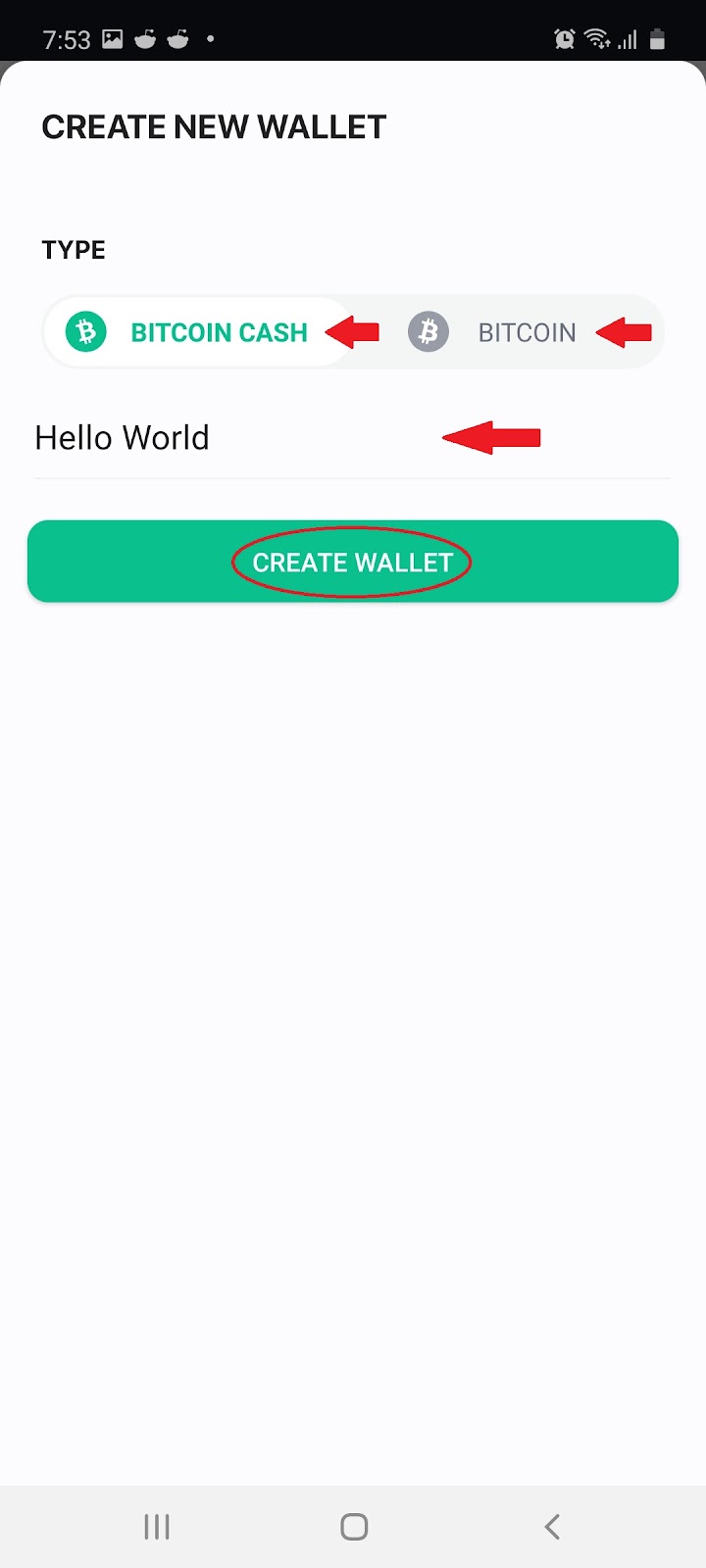
6.2 Select between BTC/ BCH wallet, fill in the name, and select ‘Create Wallet’:
 →
→ 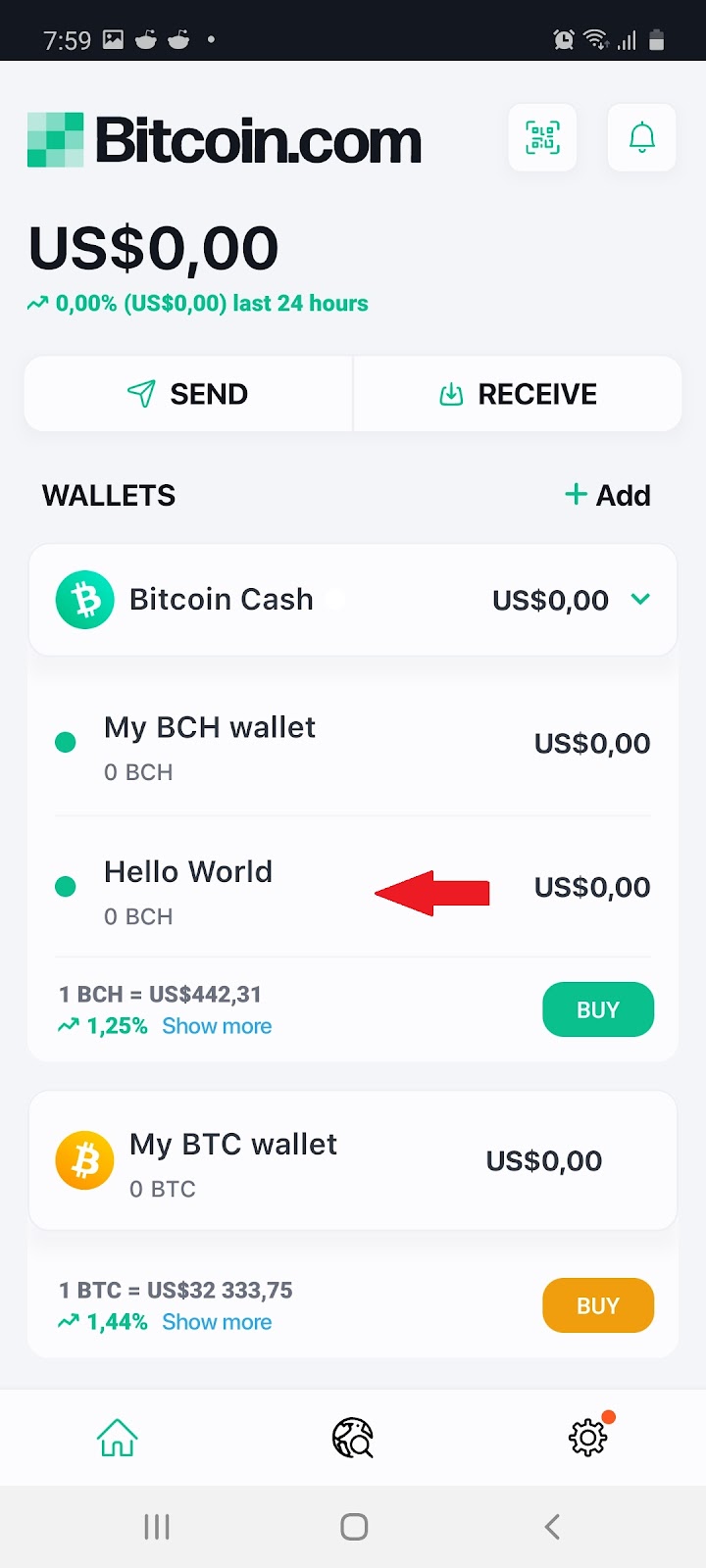
Note: Your newly created wallet will automatically appear on your home screen.
7. Bitcoin.com Swap
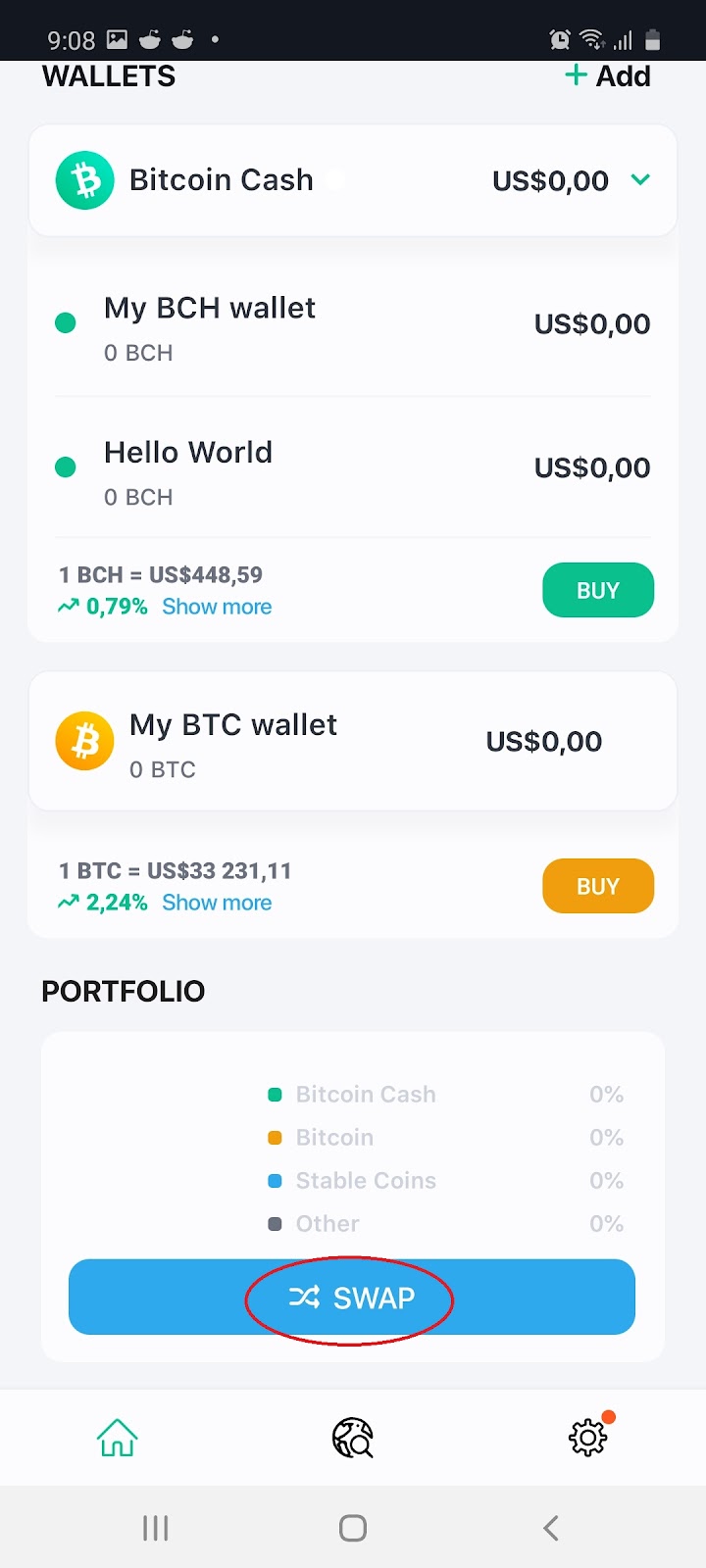
7.1 Scroll to the bottom of the home screen and select ‘Swap’:
7.2 Fill in the amount, select the receive address and click ‘Confirm and Swap’:
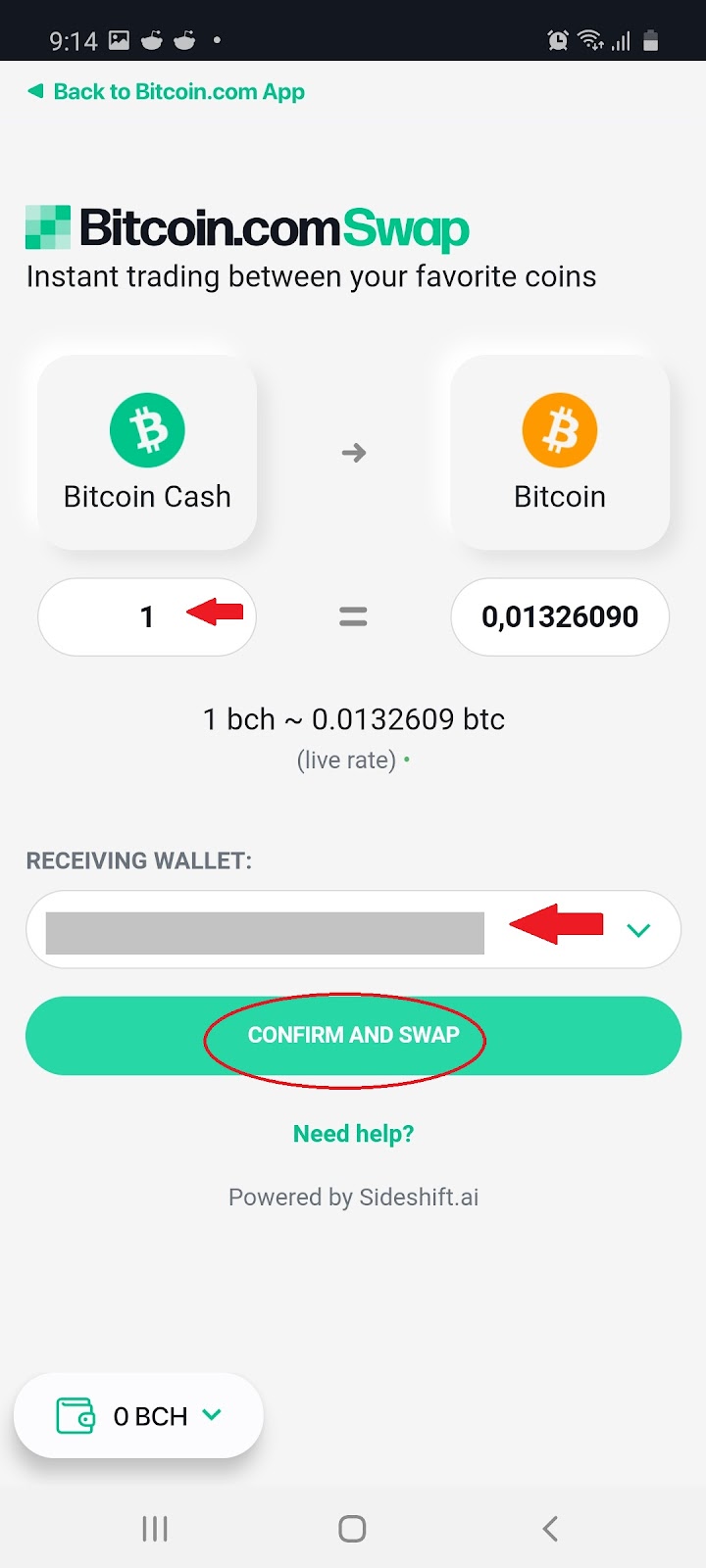
Note: This feature allows you to escape the volatility of Bitcoin or Bitcoin Cash, by swapping some of your assets to Stablecoins, and swap back when the market is more in your favour.
8. Bitcoin.com Discover
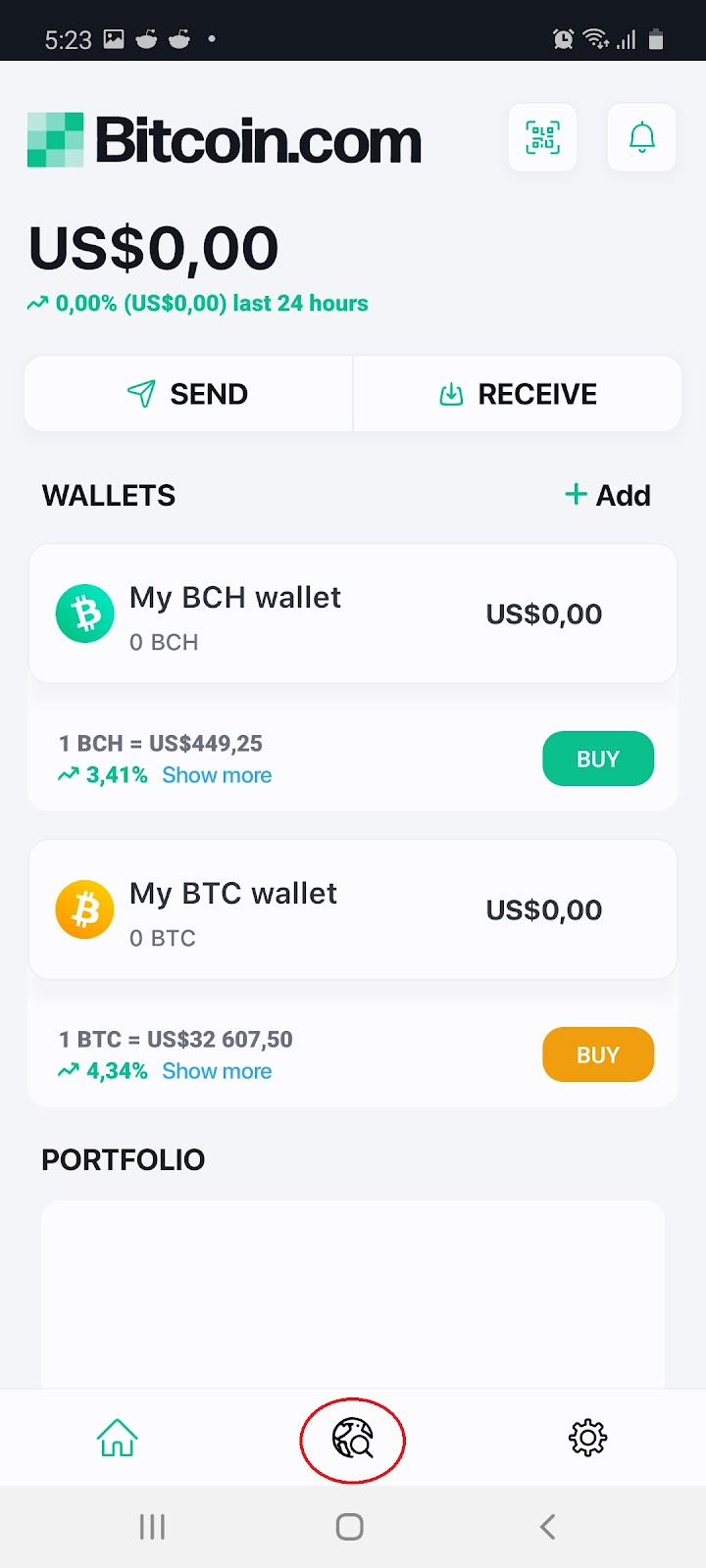
8.1 Scroll to the bottom of the home screen and select the ‘Discover’:
8.2 You will be directed to the Discover landing page:
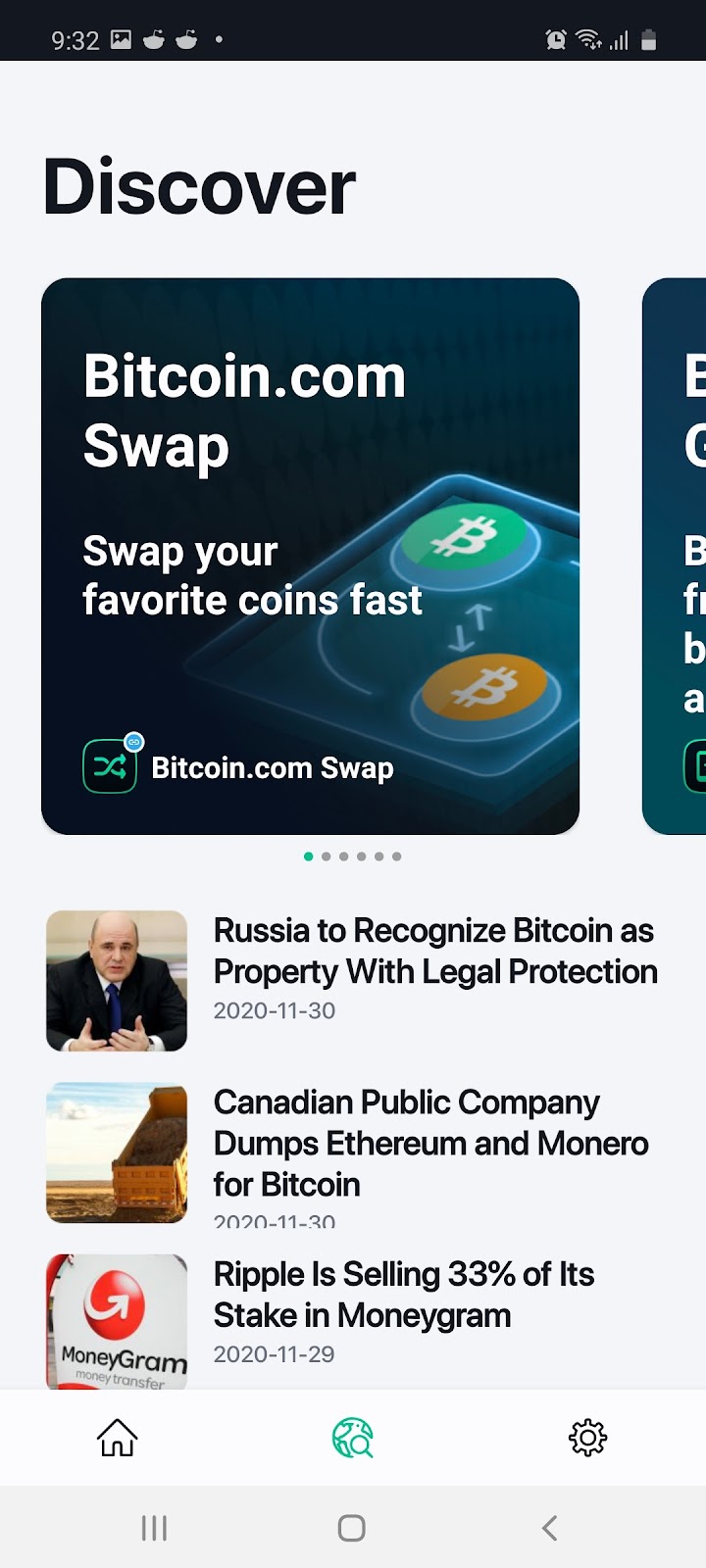
Note: This feature helps you to learn more about the latest news and developments in the cryptocurrency market.