Trust Wallet Tutorial
Contents:
- How to set up a new Trust Wallet
- Back up your wallet
- How to send Bitcoin to Trust wallet
- Sending crypto from Trust wallet
- Buying crypto from Trust wallet
- Staking your cryptocurrency
- Configuring your settings
- DEX Swap
- DEX Exchange
- Exploring the Dapps
- Exploring the DApps (IOS)
1. How To Set Up A New Trust Wallet and Send Bitcoin to Trust Wallet
Trust Wallet is the official crypto wallet of Binance. You can send, receive and store Bitcoin and many other cryptocurrencies and digital assets safely and securely with the Trust Wallet mobile app. You can even use Trust Wallet to earn interest on your crypto, play blockchain games and access the latest DApps and DeFi platforms.
1.1 Install the free app on mobile, iOS or Android:
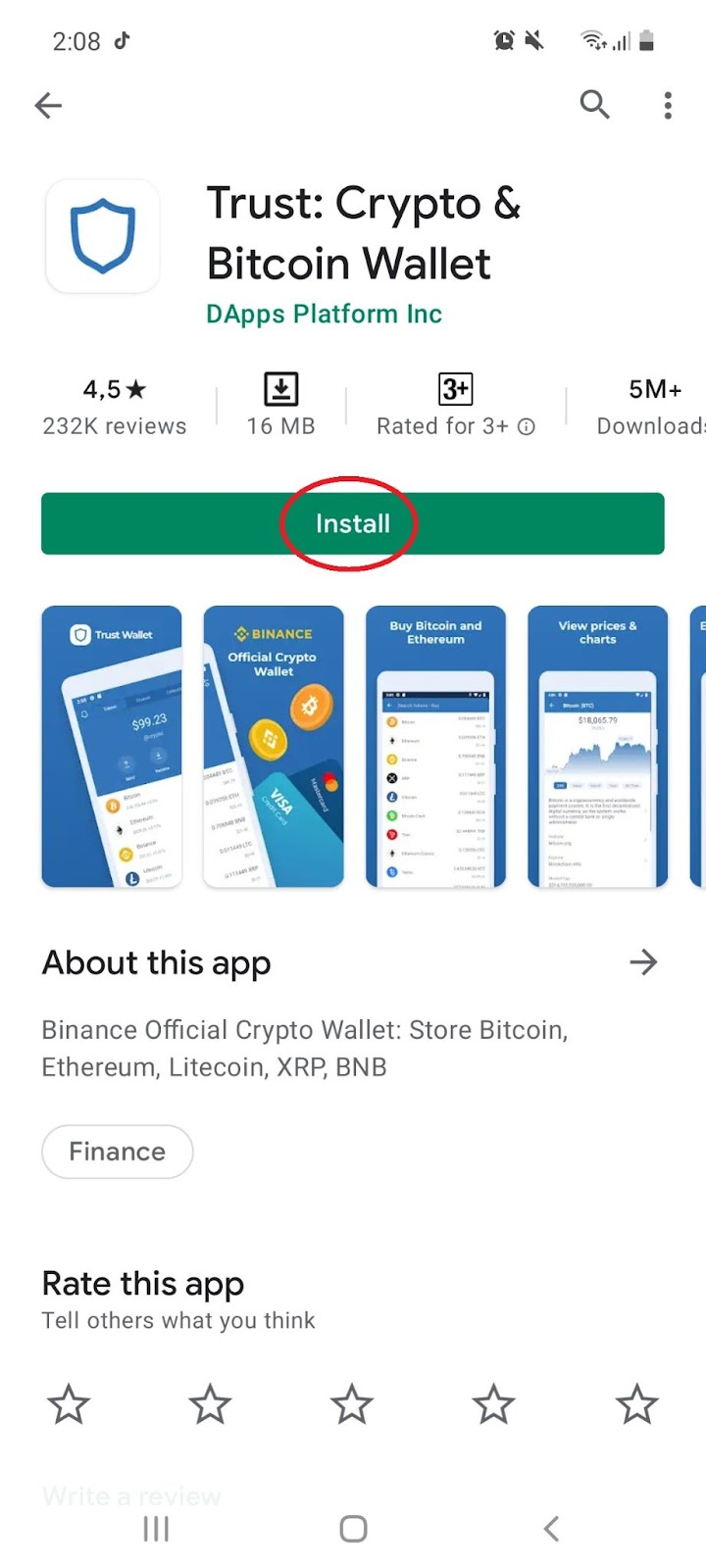
1.2 Once installed, open the app and select ‘Create a new wallet’:

1.3 Review the legal terms and conditions by selecting ‘Continue’:
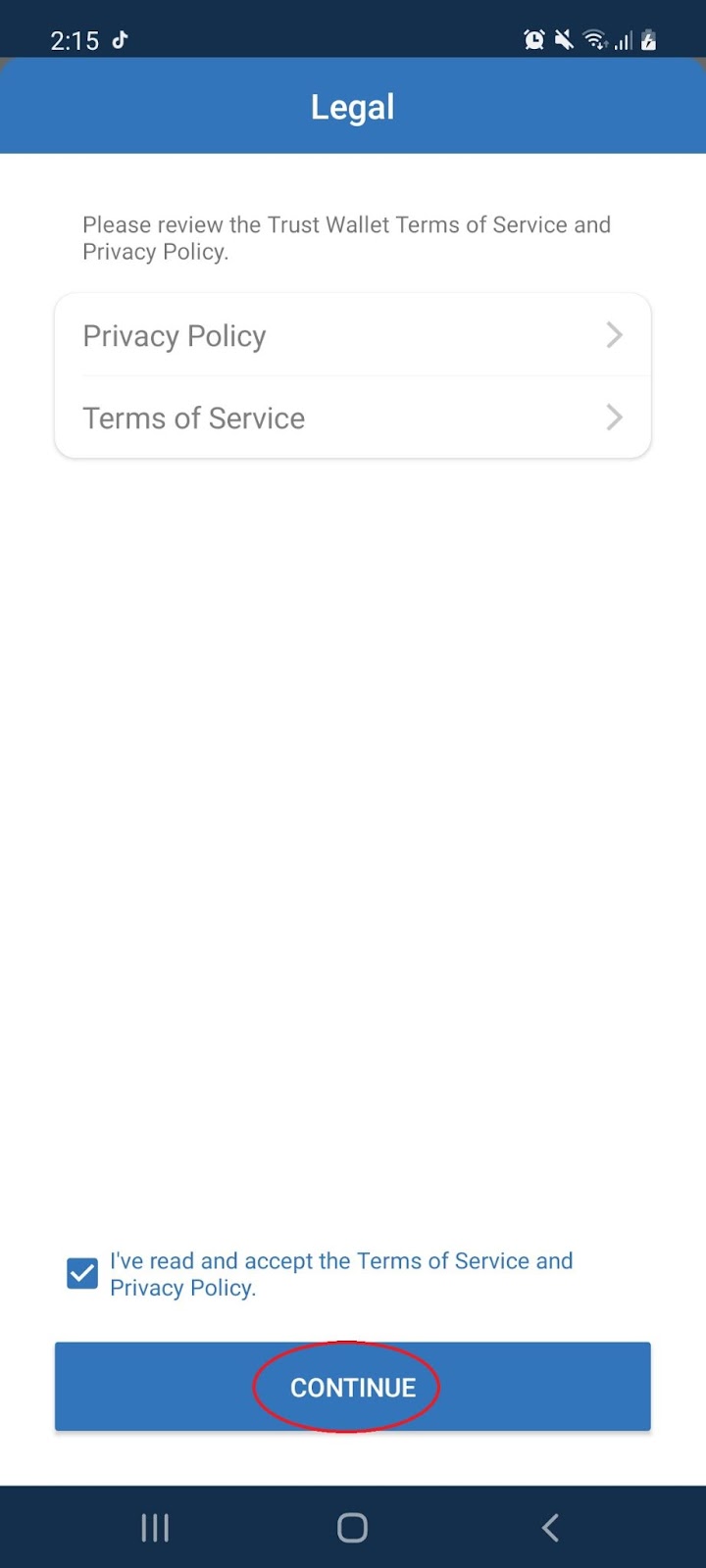
Note: The Trust Wallet does not require KYC. It is a non-custodial wallet, meaning that users hold and own their private keys and have full control of their funds
2. Back Up Your Wallet
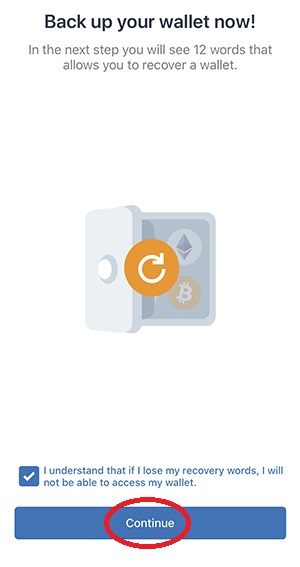
2.1 Next, you will be immediately prompted to back up your wallet. Select ‘Continue’:
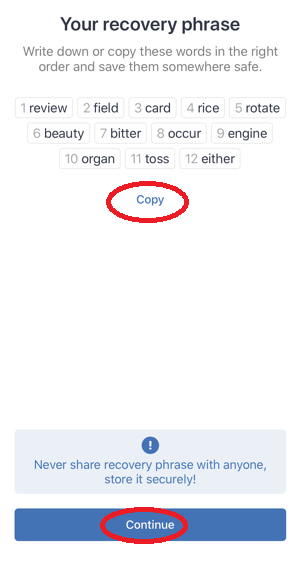
2.2 Your recovery phrase will appear. Copy the words somewhere safe, and click ‘Continue’:
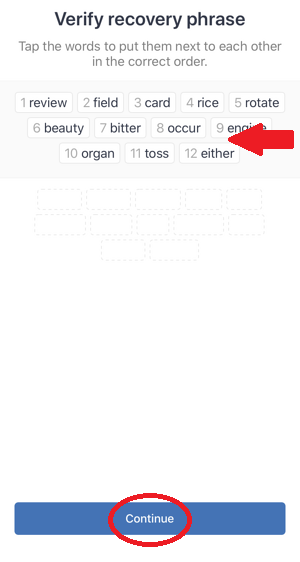
2.3 You will be prompted to verify your recovery phrase. Then select ‘Continue’:
2.3 Your wallet has been created! Select ‘Okay’ to continue:
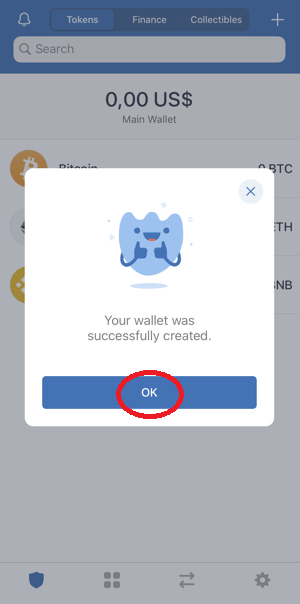
NB: Trust Wallet generates a 12-word recovery phrase, known as a ‘seed', that you and only you have access to. This means that if you lose your recovery phrase, you will lose access to your Trust Wallet and your funds.
3. How to send bitcoin to trust wallet
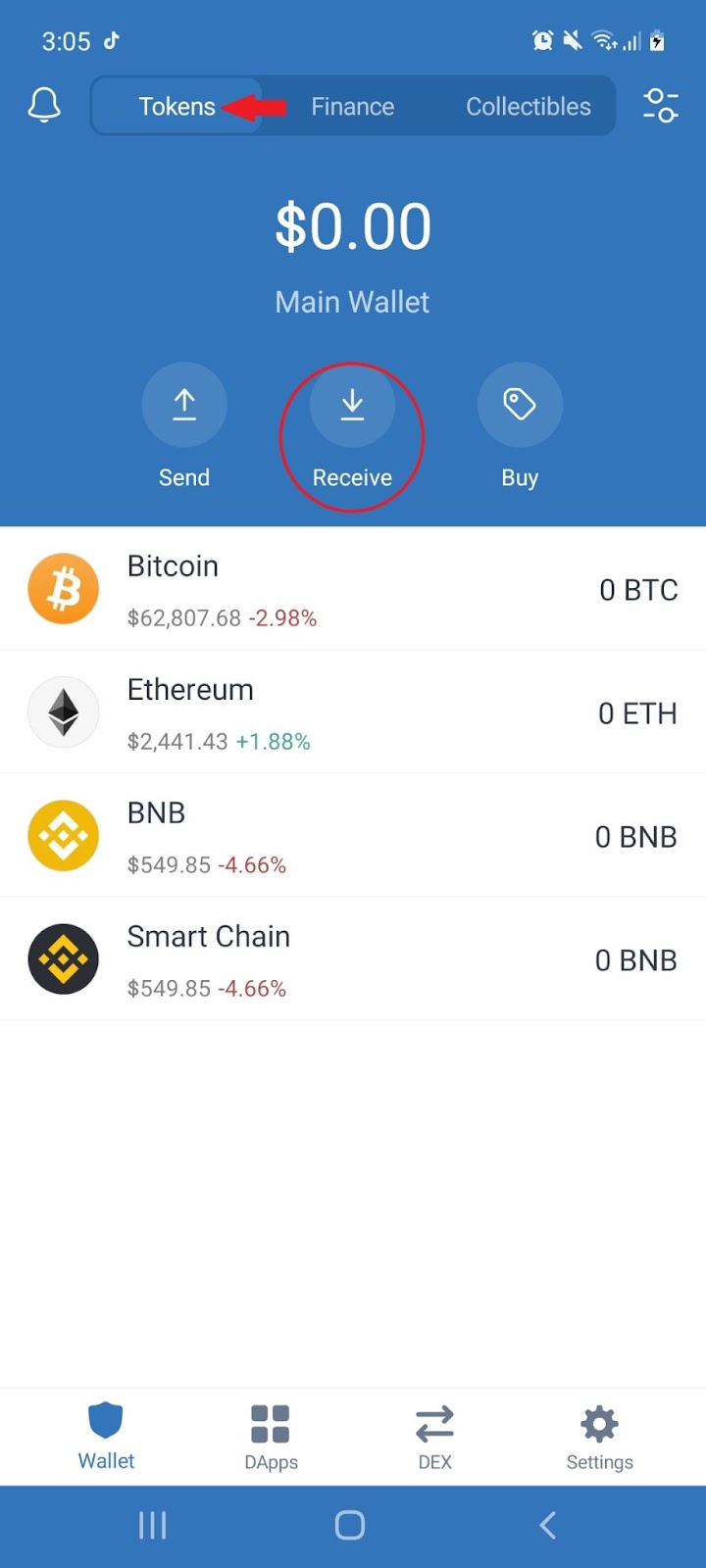
3.1 Under the ‘Tokens’ tab of the wallet select the ‘Receive’ icon:
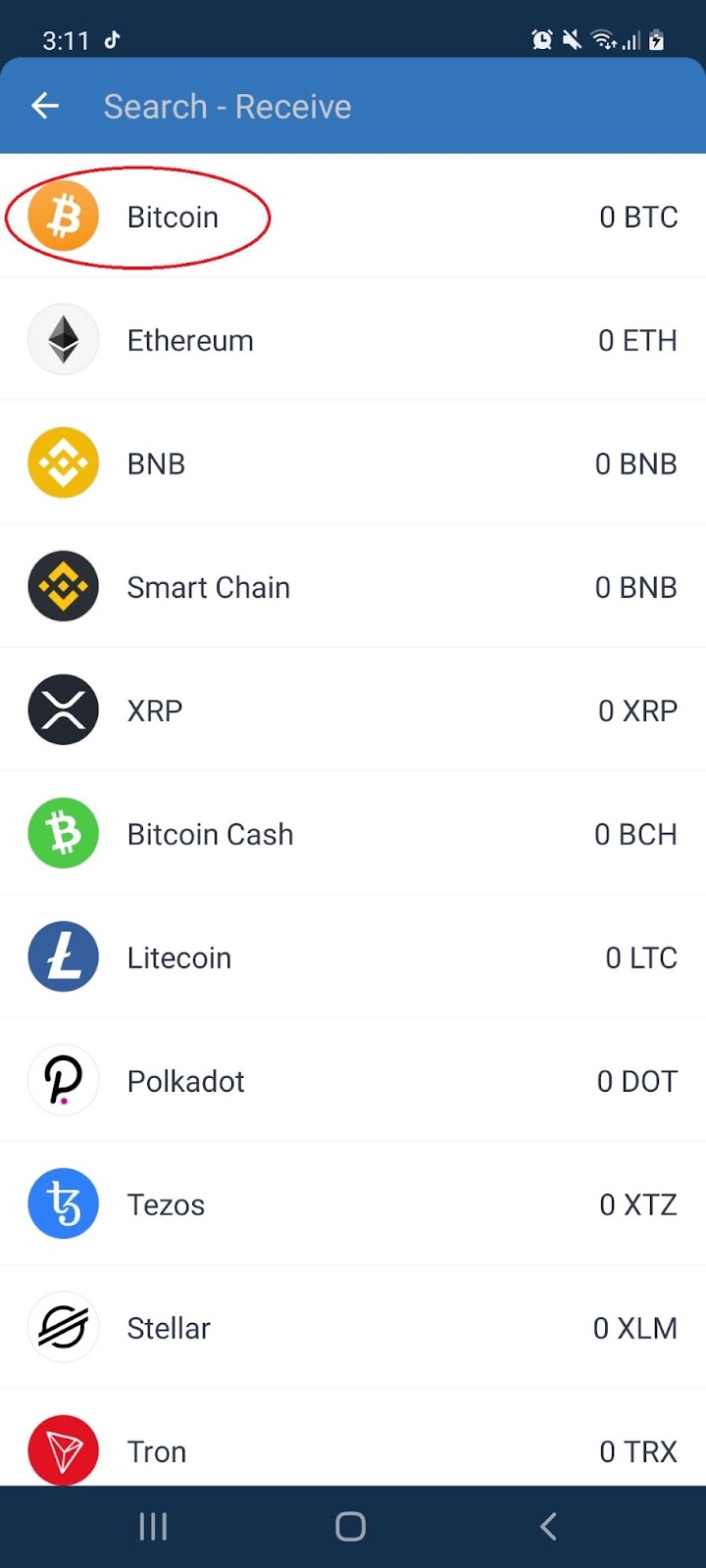
3.2 Choose or search for the cryptocurrency you would like to receive (e.g. Bitcoin):
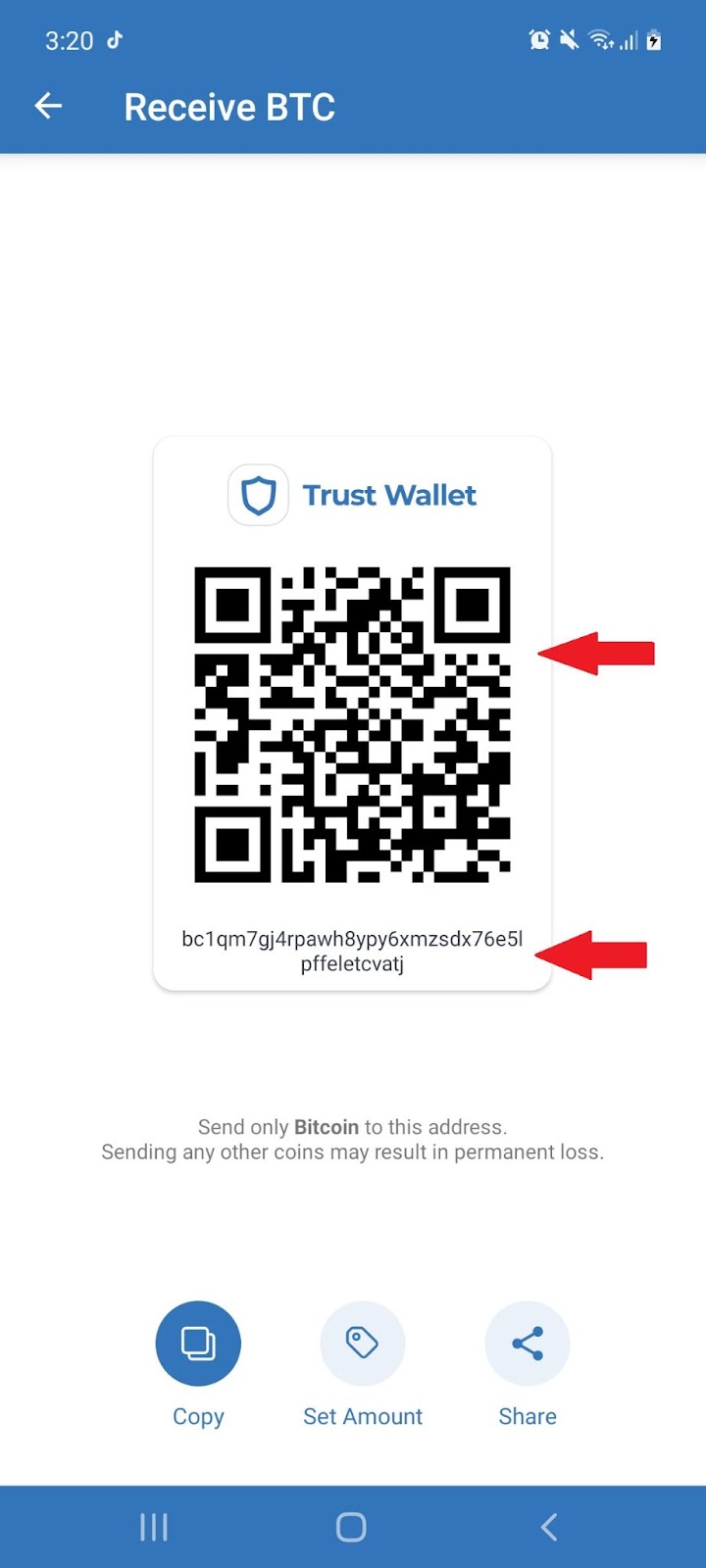
3.3 Choose to receive BTC by coping your ‘BTC Address’ or ‘scanning the QR code’:
4. Sending Crypto from Trust Wallet
4.1 Under the ‘Tokens’ tab of the wallet select the ‘Send’ icon:
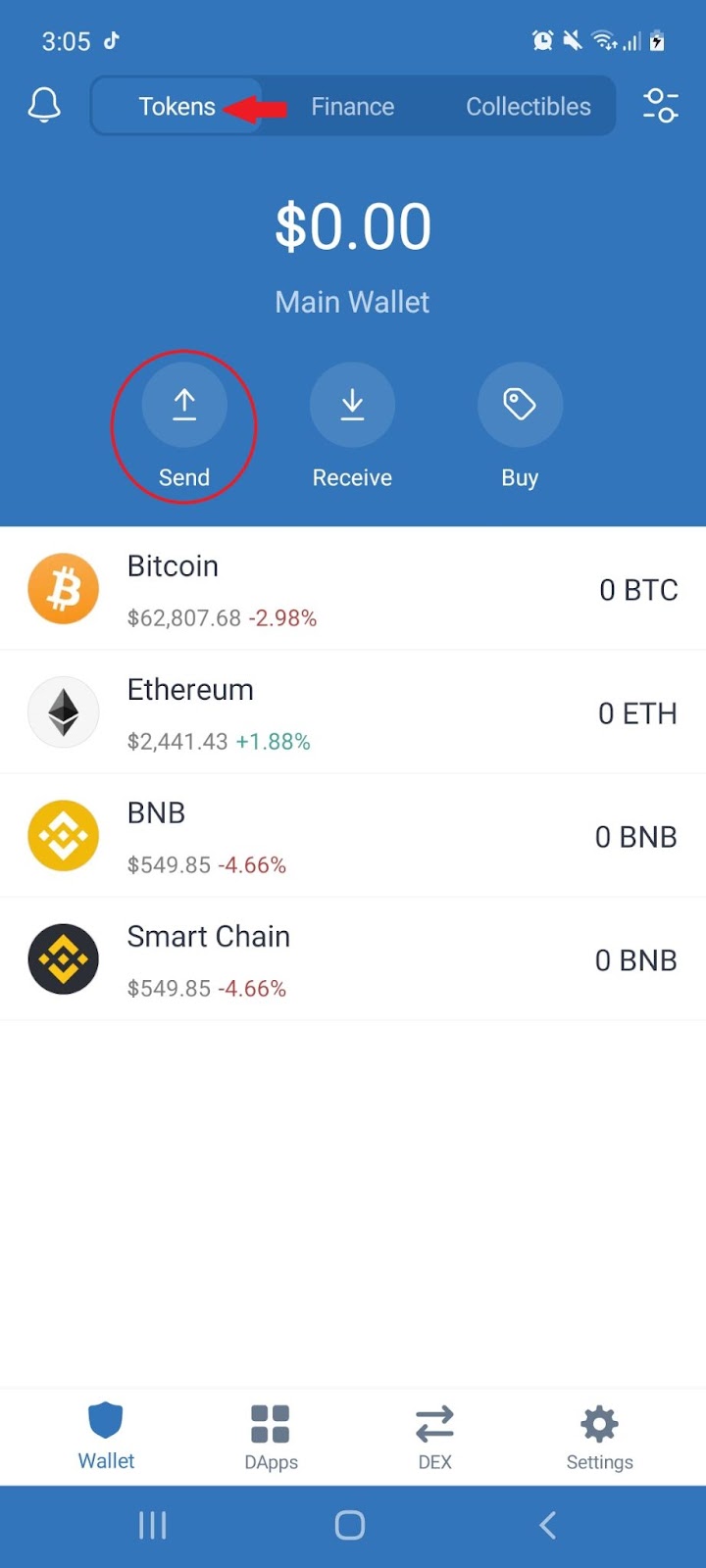
If you have funds available, you will be prompted to do the following:
- Select which coin you'd like to send
- Add the wallet address of the receiver on the first line
- Enter the amount you’d like to send
- Confirm the transaction
Note: Always check the compatibility with the currency you are trying to send. Sending crypto is irreversible and your funds may get lost.
5. Buying Crypto Trust Wallet
5.1 Under the ‘Tokens’ tab of the wallet select the ‘Buy’ icon:
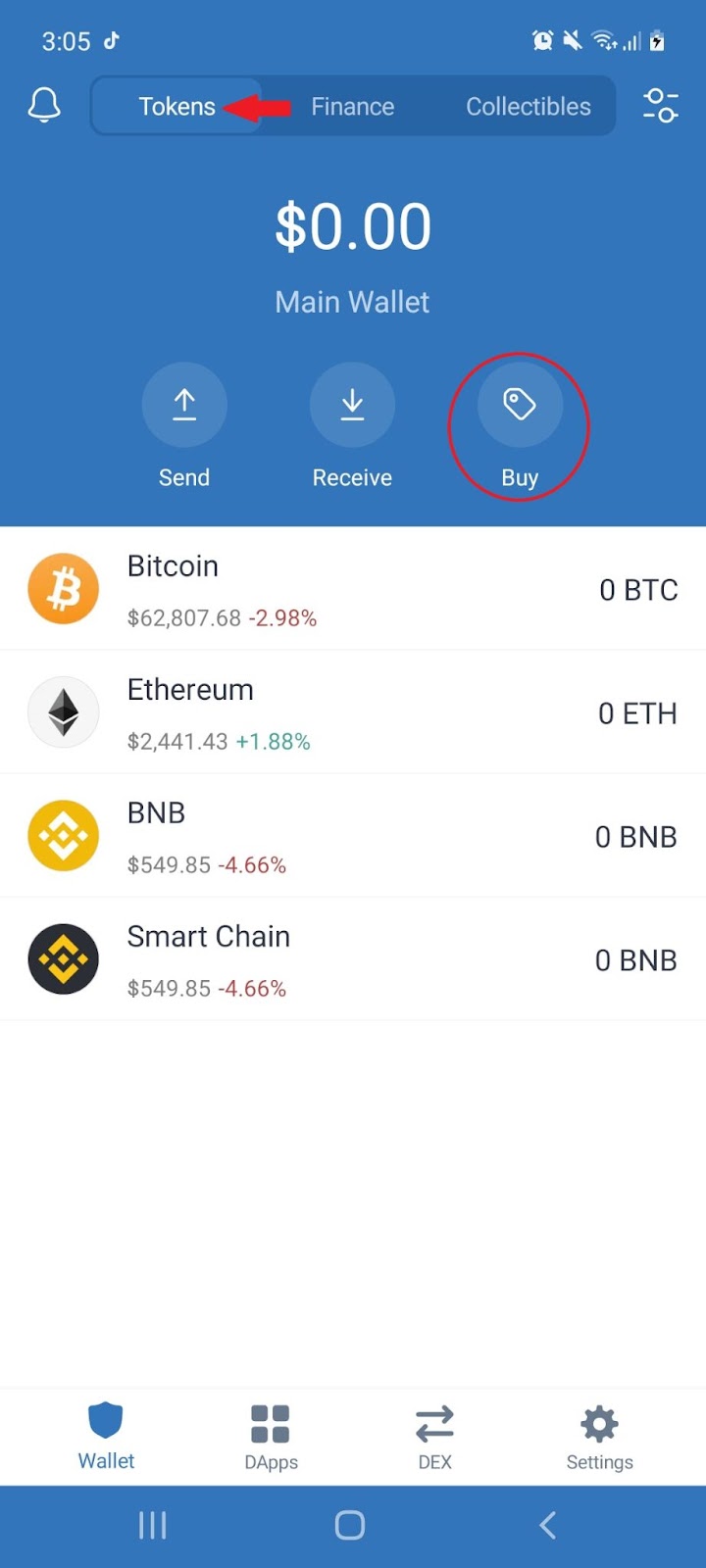
5.2 Choose or search for the cryptocurrency you would like to buy (e.g. Bitcoin):
5.3 Choose the DEX you would like to buy from and click ‘Next’ to pay with your credit card:
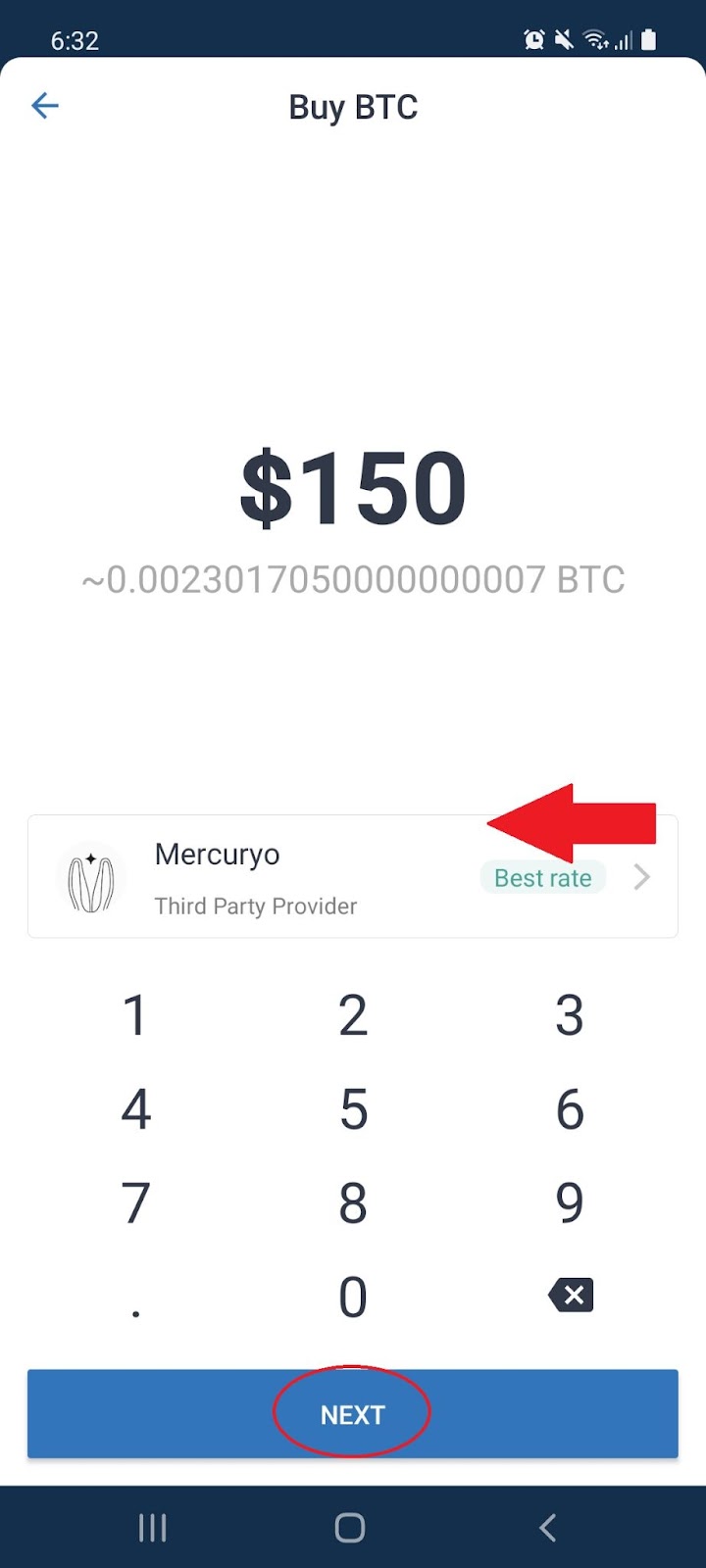
Note: Trust Wallet will search the best available rate on a DEX (Decentralized Exchange). You will be redirected to a third party website to continue the transaction with your credit card.
6. Staking your cryptocurrency
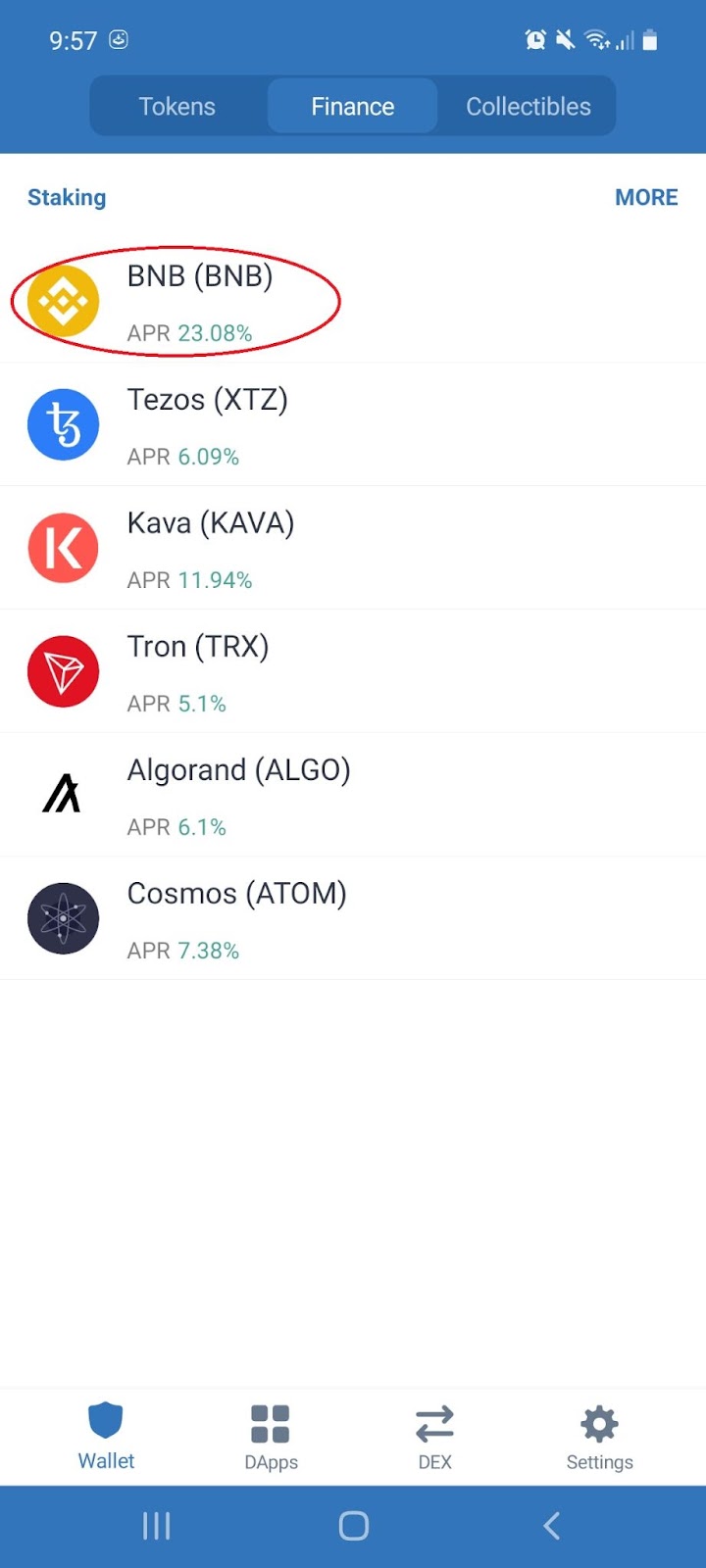
6.1 On the home page of wallet, select the ‘Finance’ tab:
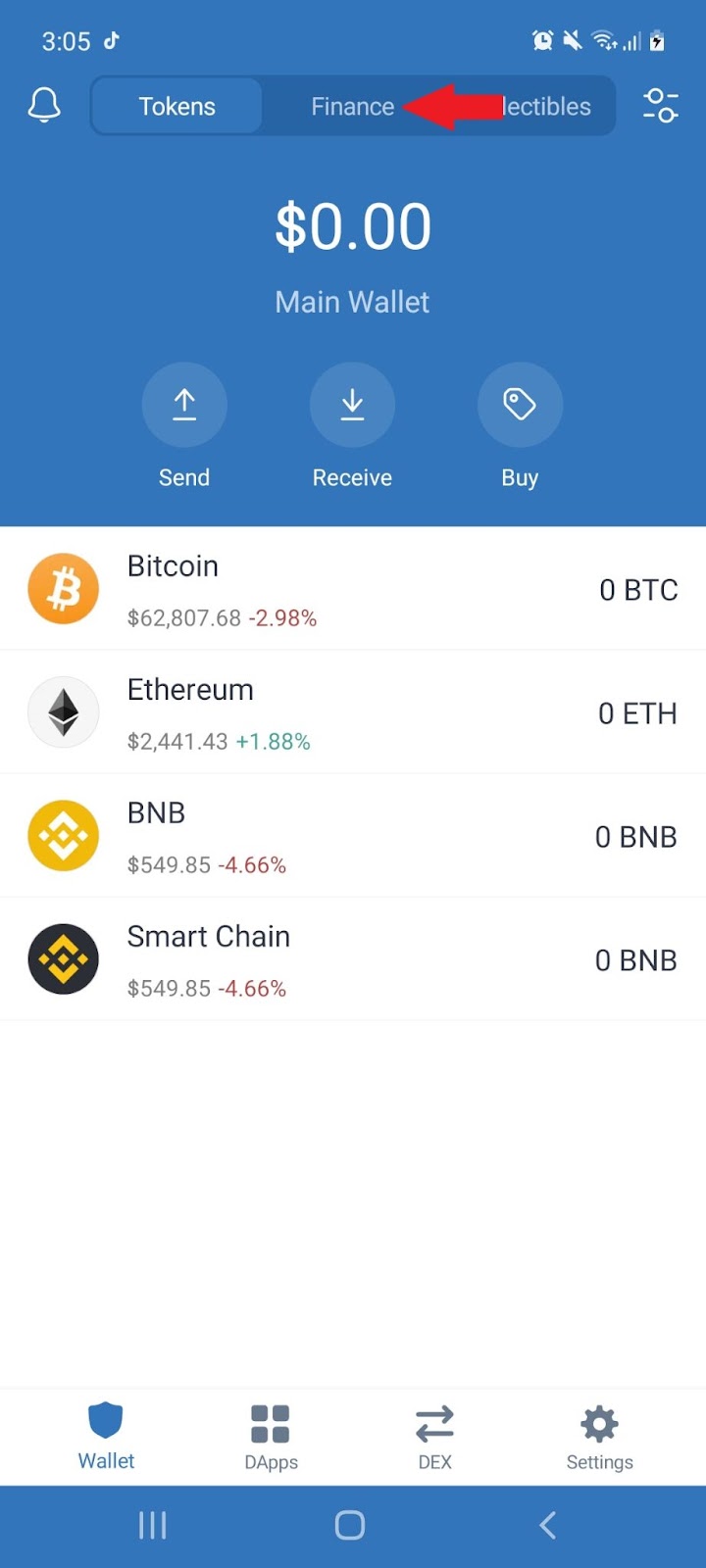
6.2 Select the cryptocurrency you would like to stake:
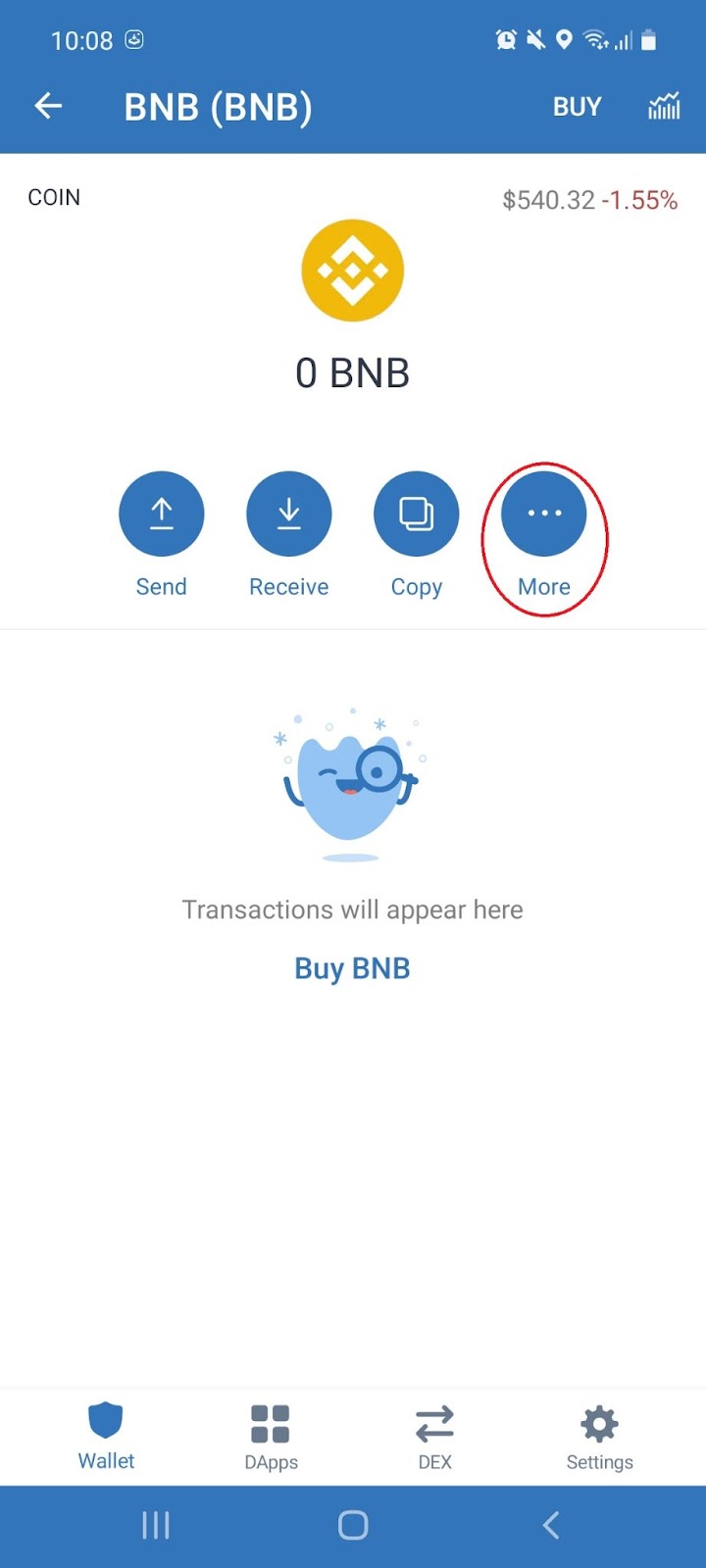
6.3 Select the ‘More’ icon:
6.4 On the pop-up,select ‘Stake’:
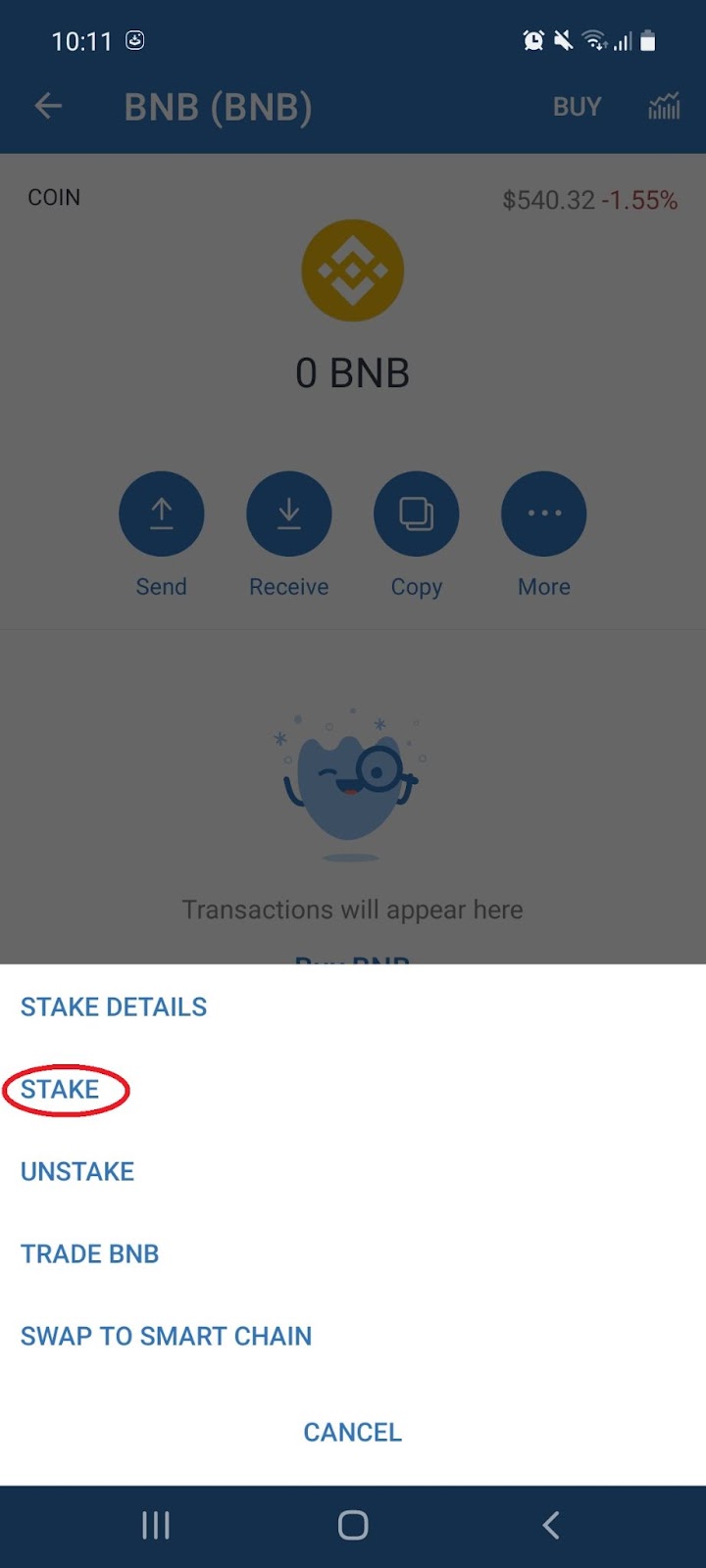
Note: Staking your cryptocurrency allows you to earn interest on the coin you have selected. During the staking period, your coins will be locked up, and you will not be able to trade them. Be sure to read the staking details carefully.
7. Configuring your settings
7.1 At the bottom of the home page, select the ‘Settings’ tab :
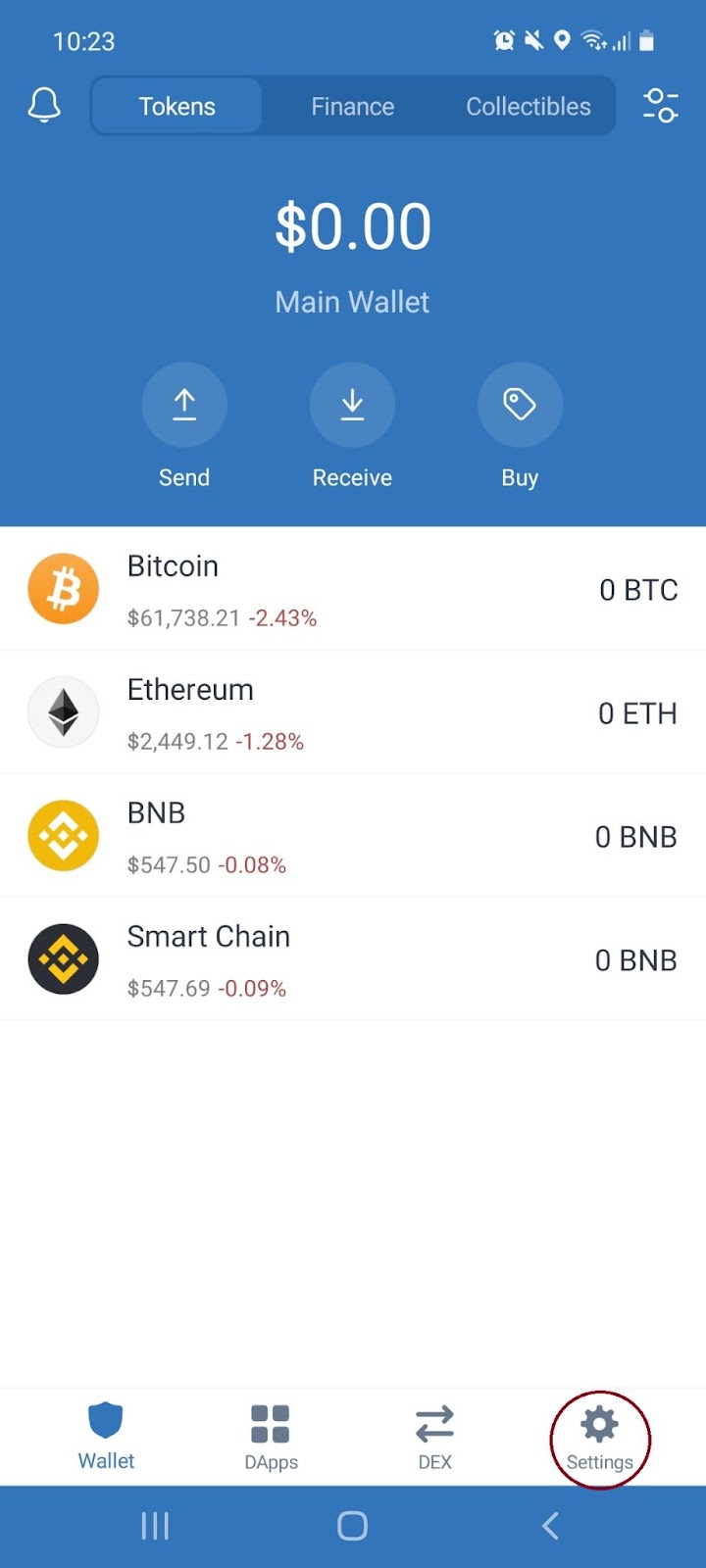
7.2 Select which option you would like to configure:
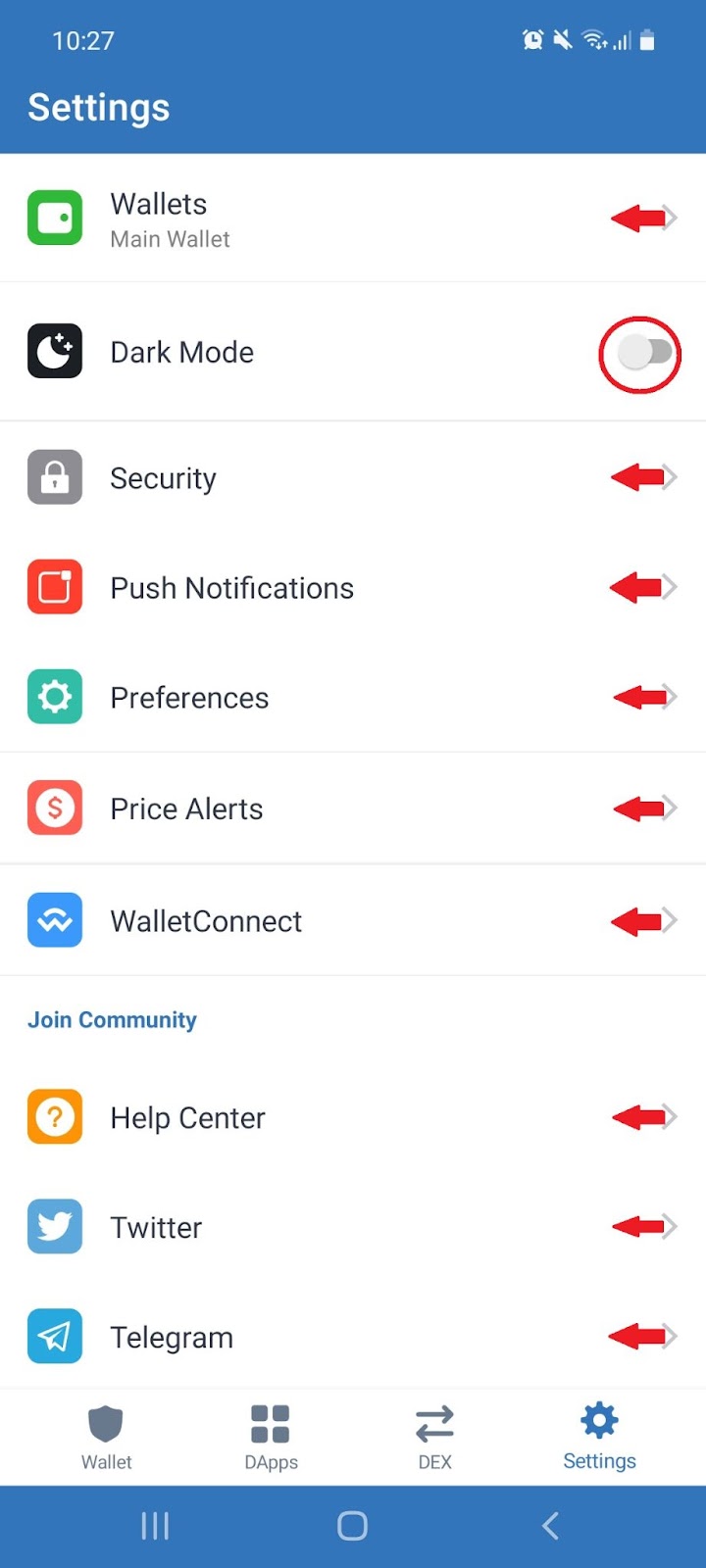
Note: Here you can add a password, enable push notifications, create price alerts, change your currency, as well as connect to social media communities.
8. DEX Swap
8.1 At the bottom of the home page, select the ‘DEX’ icon:
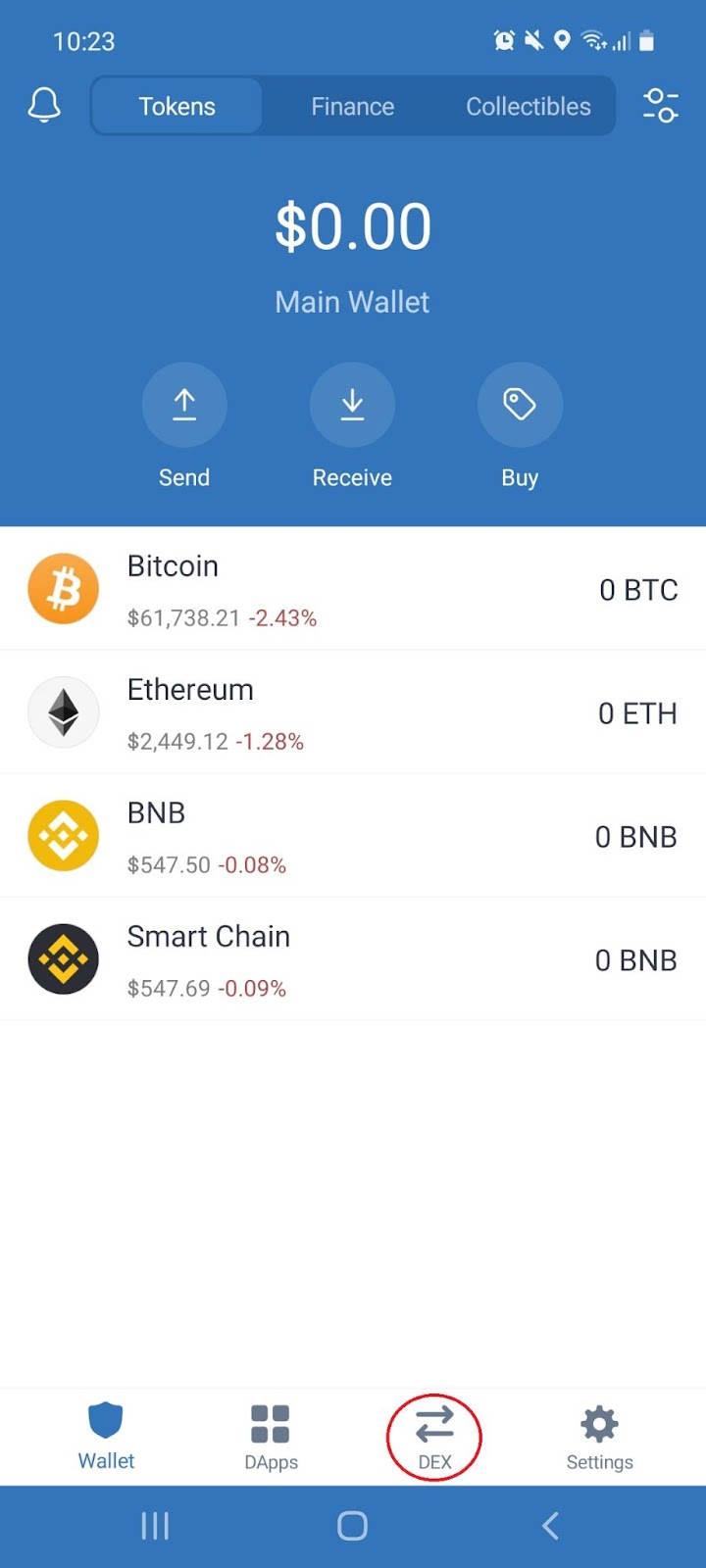
8.2 Select the cryptocurrencies and the amount you would like to swap and click ‘Swap’:
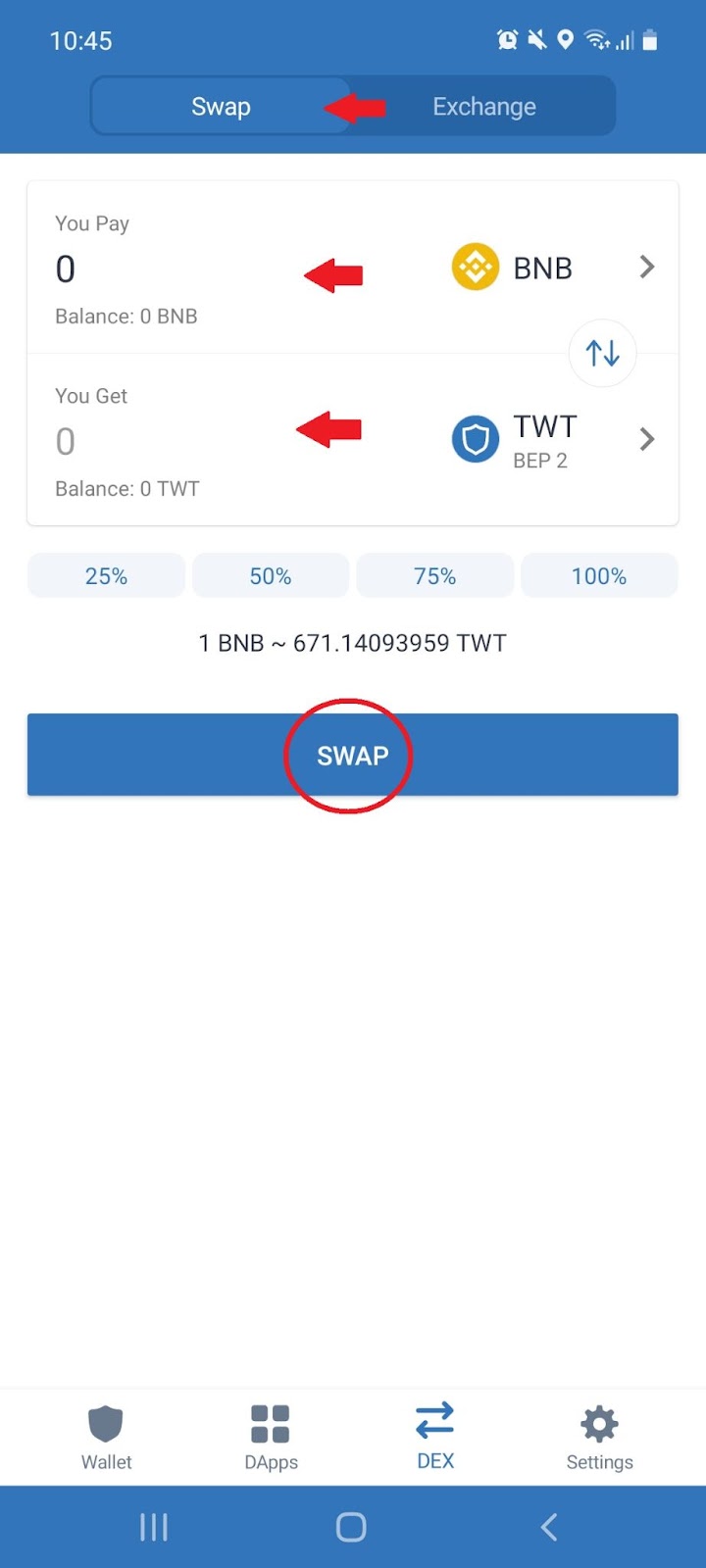
Note: You will be prompted to confirm the transaction. Trust Wallet does not charge any additional fees for swapping one crypto for another on the in-app DEX or when a user utilizes the DApp Browser to interact with decentralized applications
9. DEX Exchange
9.1 At the bottom of the home page, select the ‘DEX’ icon:
9.2 Under the ‘Exchange’ tab, select the cryptocurrencies and the amount you would like to trade for and click ‘Buy’:
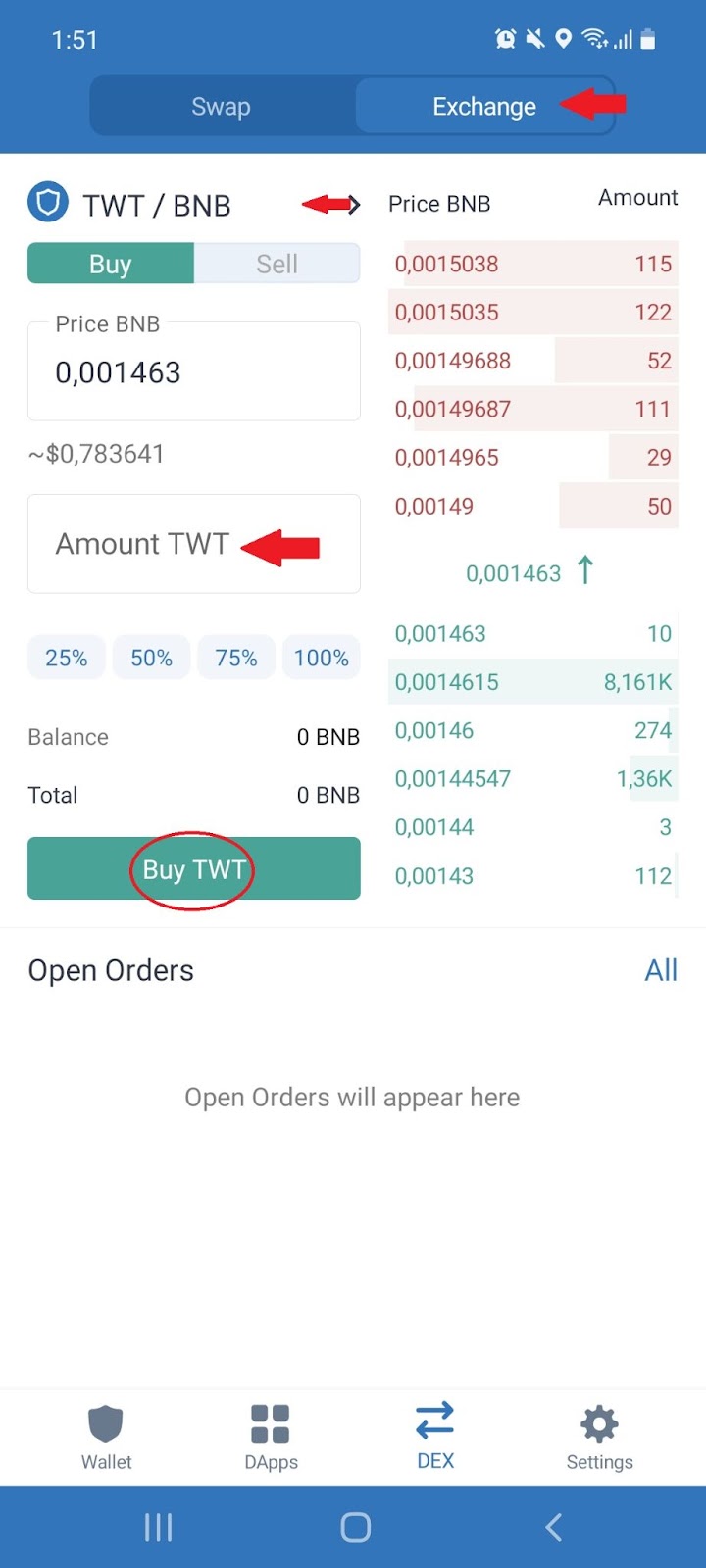
Note: You will be prompted to confirm the transaction. Trust Wallet does not charge any additional fees for swapping one crypto for another on the in-app DEX or when a user utilizes the DApp Browser to interact with decentralized applications
10. Exploring the Dapps
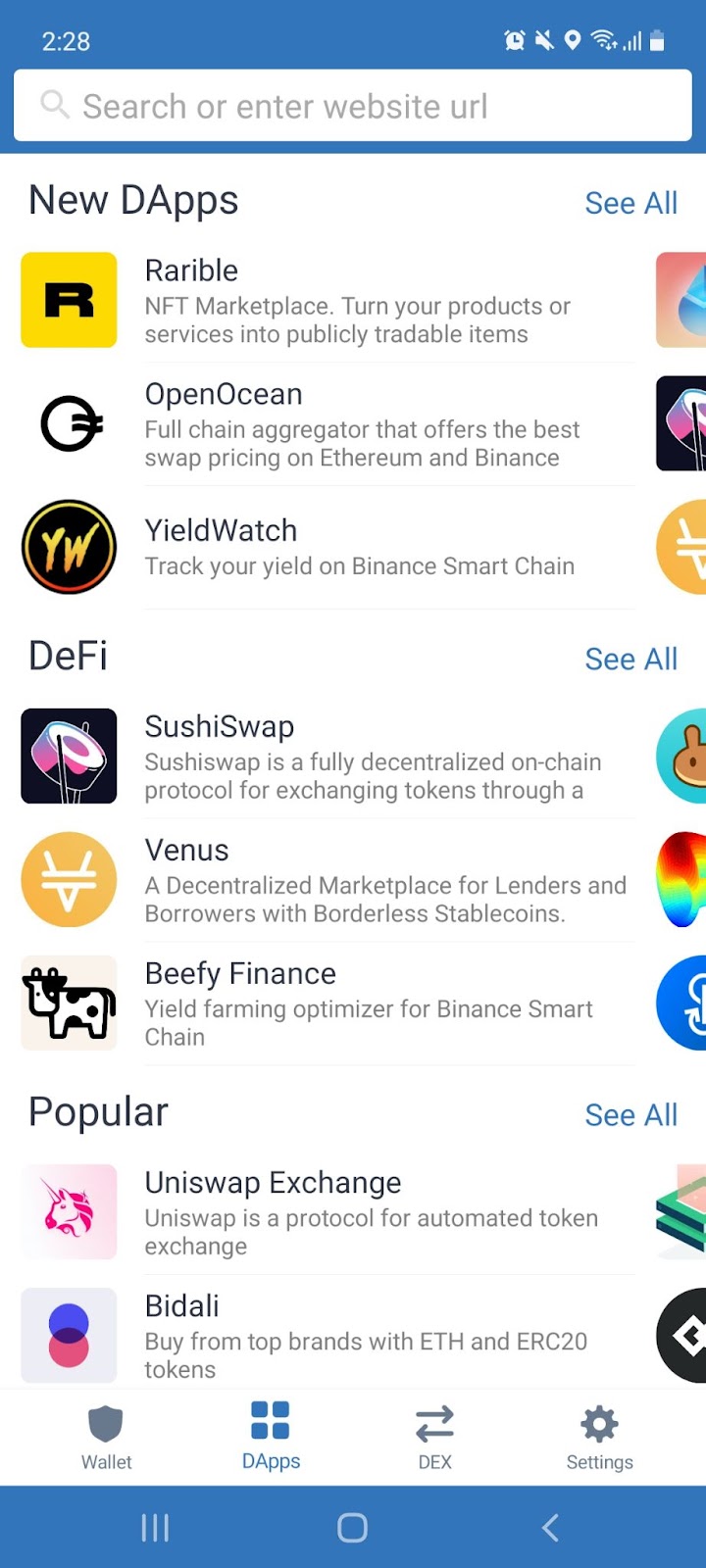
10.1 At the bottom of the home page, select the ‘Dapp’ icon:
10.2 Scroll down or search to find the Dapp you want to interact with:
Note: Trust Wallet does not charge any additional fees for swapping one crypto for another on the in-app DEX or when a user utilizes the DApp Browser to interact with decentralized applications
11. Exploring the DApps (IOS)
To explore the Trust Wallet DApps on your Apple device, you need to have IOS version 5.11 or higher installed in order to proceed.
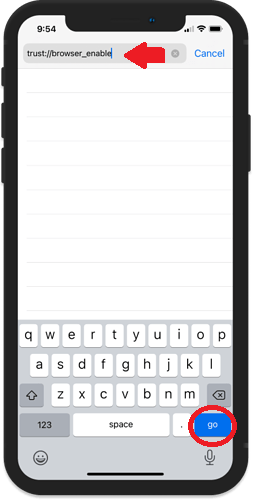
- Open Safari Browser, type in the URL: trust://browser_enable, and click ‘Go’:
- A pop-up will appear to ask if you want to ‘Open this page in “Trust”?’, click ‘Open’:
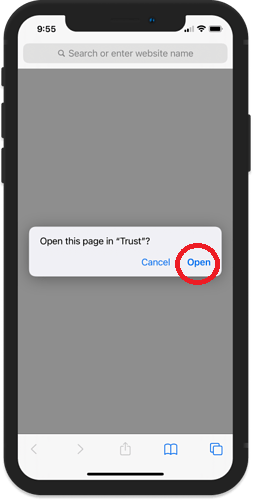
Note: Make sure that there are no open tabs on your Safari browser when you type the URL in order to see this screen.
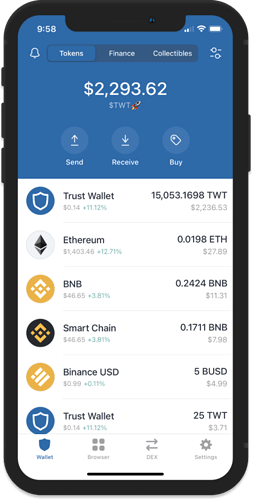
- The Trust Wallet app will launch and the DApp browser will be enabled.
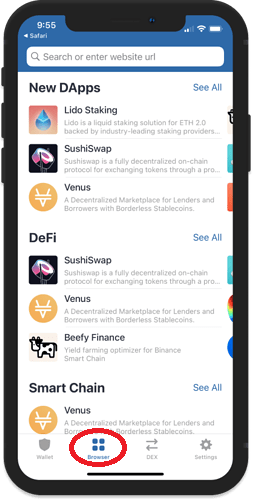
Note: Trust Wallet does not charge any additional fees for swapping one crypto for another on the in-app DEX or when a user utilizes the DApp Browser to interact with decentralized applications
if yyou want to to grow your wallet holdings steadily, join our discord community membership.